
Create Workloads with Multiple Network Interfaces
Objective
This guide provides instructions on how to create multiple interfaces for virtual machine (VM), container, or pod workloads running in a Kubernetes cluster within an F5® Distributed Cloud App Stack Site.
Overview
In your App Stack Site configuration form, you enable this feature which auto-installs KubeVirt in your cluster. The first interface of the virtual machine or container is always connected to the default pod network. You can create subnets and attach them to additional interfaces of a virtual machine or container. Virtual machines and containers within the same Site (across control and worker nodes) are connected only within a subnet, not across subnets. This allows your virtual machine and container workloads to run as pods inside a Kubernetes cluster. You can manage virtual machine workloads with Kubernetes, without having to convert them to containers.
You can also add VLAN Layer 2 interfaces to VMs and pods. These Layer 2 interfaces act as subnets and have access to the underlay network and bypass the F5 Distributed Cloud Services node data plane. The Layer 2 IP addresses are allocated using an external Dynamic Host Configuration Protocol (DHCP) server or can be static within the VM or pod itself. Different types of subnets can be attached to VMs and Pods running on Layer 2 interfaces.
The Subnets and Network Interfaces configuration objects in Distributed Cloud Services create a Kubernetes Network Attachment Definition on an F5 Distributed Cloud App Stack Site using the bridge CNI plug-in. Layer 2 network interfaces must not have subnet DHCP networks configured in the subnet object.
Prerequisites
The following prerequisites apply:
-
An F5 Distributed Cloud Account. If you do not have an account, see Getting Started with Console.
-
An App Stack Site with managed Kubernetes. For more information, see App Stack Site.
-
Predefined subnet and network interface objects. For more information, see the Create Subnet and Network Interfaces guides.
Enable Virtual Machine Support for Site
Enable VM support to auto-install KubeVirt on your Site.
-
To confirm your existing Site has VM support enable:
-
Select Multi-Cloud Network Connect.
-
Select Manage > Site Management > App Stack Sites.
-
Find your Site and then select ... > Manage Configuration.
-
Select Advanced Configuration from the left menu pane.
-
Under the Enable/Disable VMs support field, confirm your Site has VM support enabled.
-
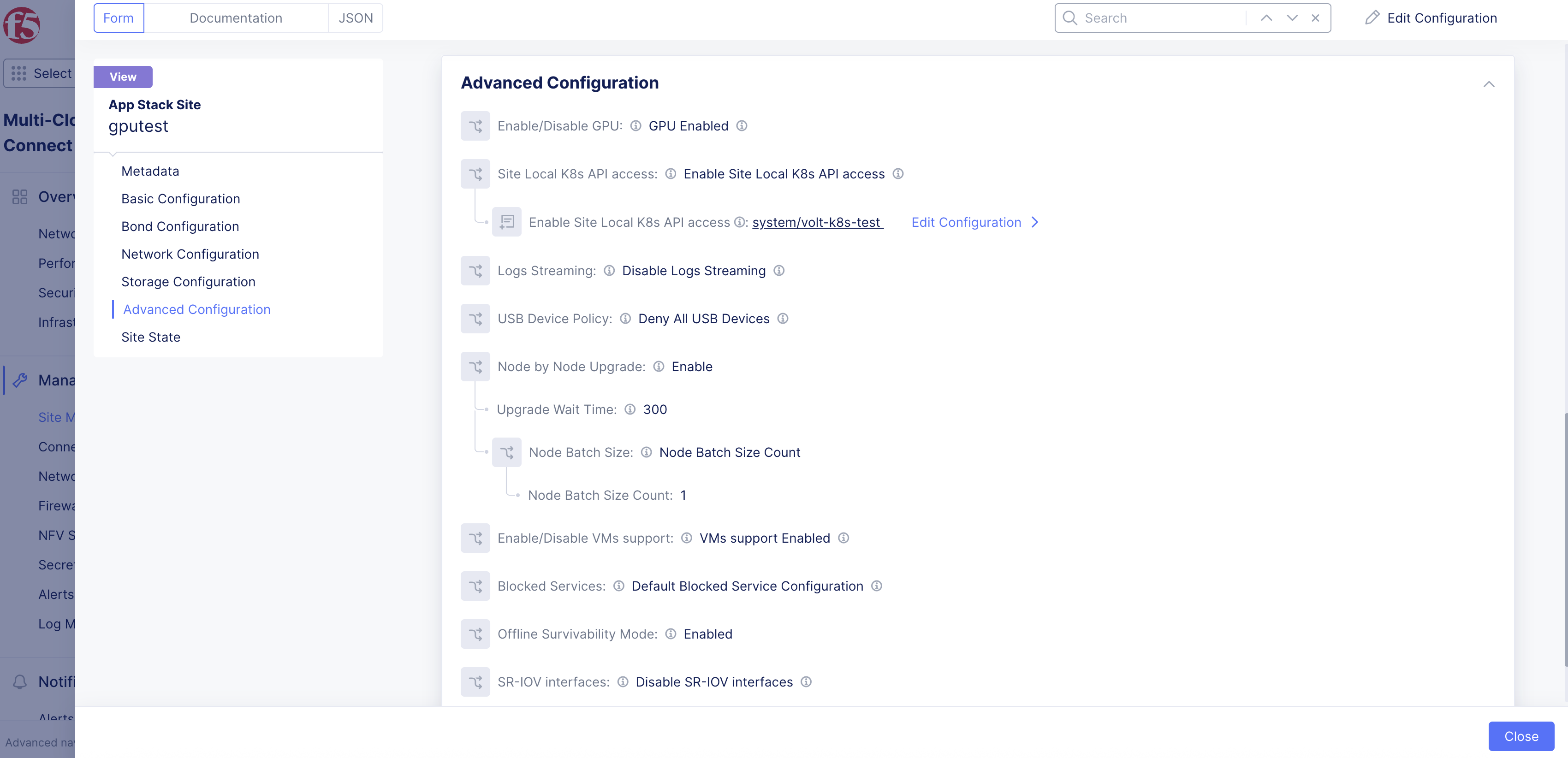
Figure: Confirm Support
- If you are creating a new Site, select VMs support Enabled from the Enable/Disable VMs support drop-down menu.
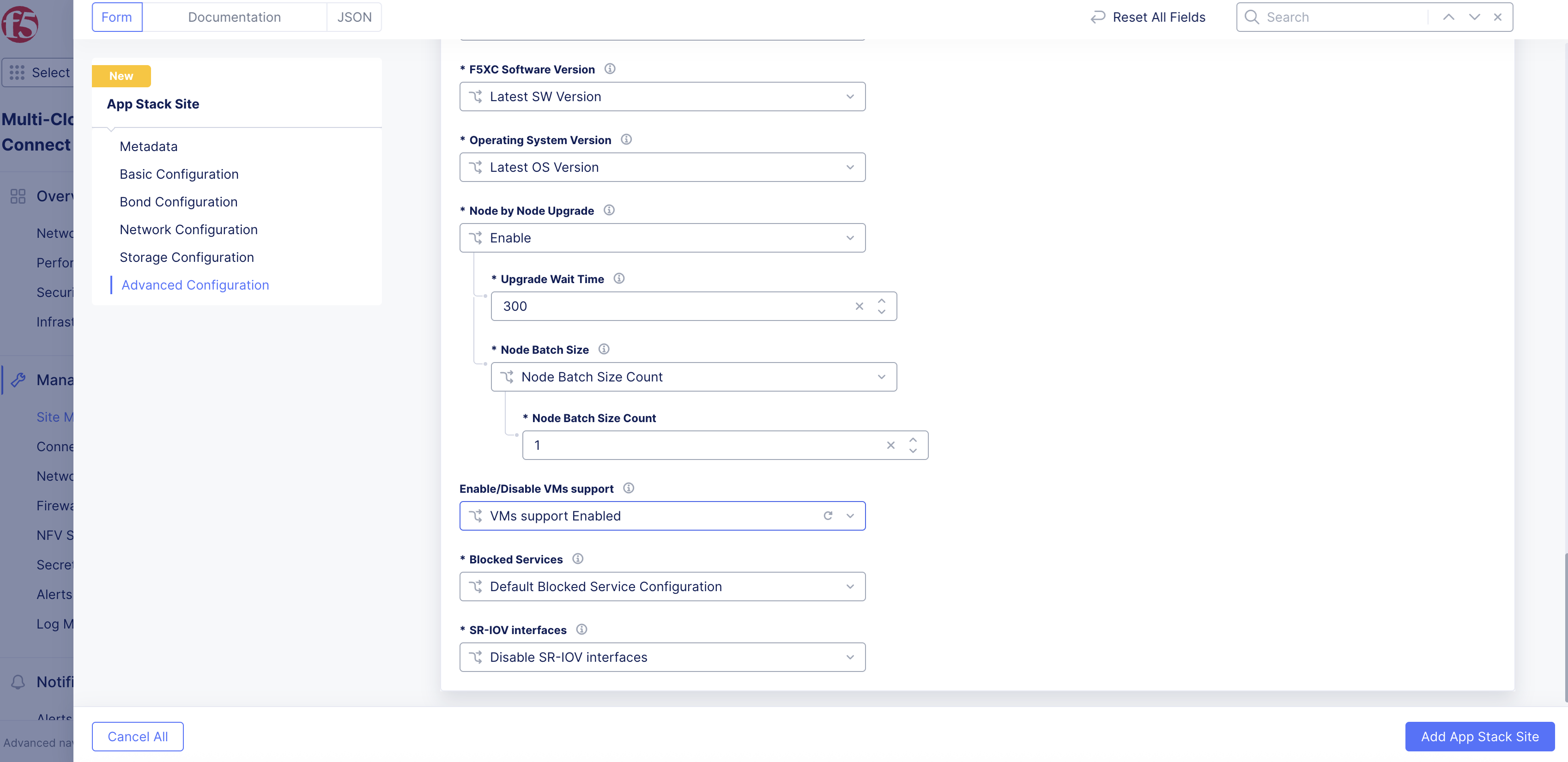
Figure: Add Support
Download Kubeconfig File
In the Distributed Apps workspace, navigate to your App Stack Site and download the kubeconfig file based on your managed K8s configuration.
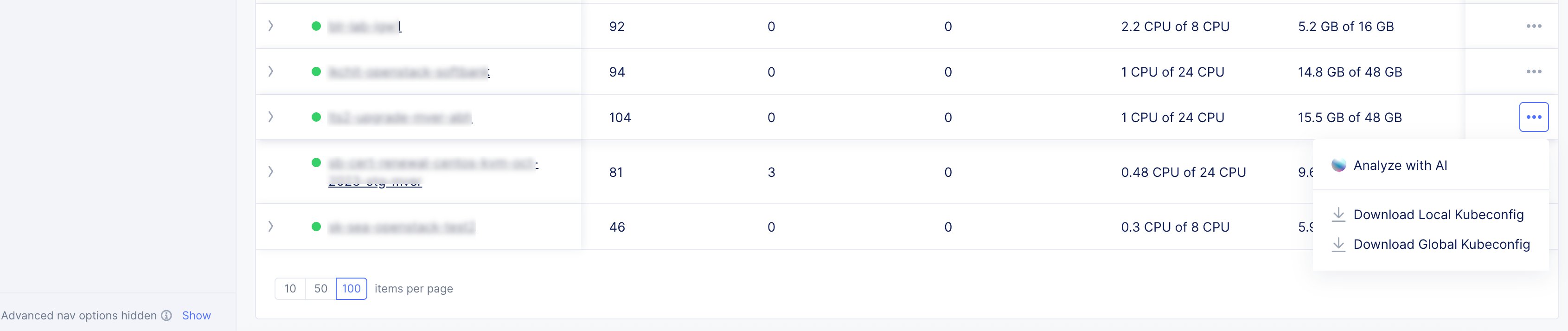
Figure: Kubeconfig File
Create and Apply the Manifest File
Create a manifest file that refers to the multiple subnets for the interfaces, and then apply the VM or container configuration.
Create a Virtual Machine
-
In the .yml file, configure the fields per your desired configuration.
-
Ensure that the
networkName: ves-system/<subnet-name>match the subnet(s) you created previously in Console. In the example below, networkName: ves-system/test-subnet-1 corresponds to a subnet test-subnet-1 created in Console.
Note: In the example manifest below, multus-1 and multus-2 are the additional networks that the VM interfaces will be on. Also, the example pins the VM to a specific node (control-0 in this case), but that is optional.
apiVersion: kubevirt.io/v1alpha3kind: VirtualMachinemetadata: name: test-vm-1spec: running: true template: metadata: labels: kubevirt.io/name: test-vm-1 spec: nodeSelector: kubernetes.io/hostname: control-0 domain: cpu: threads: 1 cores: 1 sockets: 1 memory: guest: "1G" devices: autoattachPodInterface: true # true by default, explicitly setting for clarity disks: - name: bootdisk disk: bus: virtio - name: cloud-init disk: bus: virtio interfaces: - name: default masquerade: {} - name: multus-1 bridge: {} - name: multus-2 bridge: {} terminationGracePeriodSeconds: 0 networks: - name: default pod: {} - multus: networkName: ves-system/test-subnet-1 name: multus-1 - multus: networkName: ves-system/test-subnet-2 name: multus-2 volumes: - name: bootdisk containerDisk: image: quay.io/containerdisks/ubuntu:20.04 - name: cloud-init cloudInitNoCloud: userData: |- #cloud-config users: - name: root ssh-authorized-keys: # provide ssh public key ssh_pwauth: True password: ubuntu chpasswd: expire: False list: |- root:ubuntu networkData: | network: version: 1 config: - type: physical name: enp1s0 subnets: - type: dhcp - type: physical name: enp2s0 subnets: - type: dhcp - type: physical name: enp3s0 subnets: - type: dhcp-
To apply the configuration and create the VM/container, enter the following command: kubectl apply -f name-of-file.yml.
-
To confirm the VM/container was created, enter the following command: kubectl get vms.
This example shows three virtual machines created:
$ kubectl get vmsNAME AGE STATUS READYfedora1 5d9h Running Truefedora2 5d9h Running Truefedora3 5d9h Running TrueCreate Pods Connected to Layer 2 VLAN
- In the .yml file, configure the fields per your desired configuration. See example deployment below for a manifest file that creates two pods with Layer 2 VLAN interfaces.
apiVersion: v1kind: Podmetadata: name: colo-a1 annotations: k8s.v1.cni.cncf.io/networks: ves-system/marcel-colo-vlan10spec: nodeSelector: kubernetes.io/hostname: ryzen1 containers: - image: alpine command: ["sleep", "infinity"] imagePullPolicy: IfNotPresent name: alpine securityContext: privileged: true runAsUser: 0---apiVersion: v1kind: Podmetadata: name: colo-a2 annotations: k8s.v1.cni.cncf.io/networks: ves-system/marcel-colo-vlan10spec: nodeSelector: kubernetes.io/hostname: ryzen2 containers: - image: alpine command: ["sleep", "infinity"] imagePullPolicy: IfNotPresent name: alpine securityContext: privileged: true runAsUser: 0-
To apply the configuration and create the pods, enter kubectl apply -f name-of-file.yml.
-
To confirm the pods were created, enter kubectl get pods -o wide.
This example shows two pods created (colo-a1 and colo-a2):
$ kubectl get pods -o wideNAME READY STATUS RESTARTS AGE IP NODE NOMINATED NODE READINESS GATEScolo-a1 2/2 Running 0 18h 10.1.3.118 ryzen1 <none> <none>colo-a2 2/2 Running 0 18h 10.1.3.119 ryzen2 <none> <none>virt-launcher-colo-f1-fpl5z 3/3 Running 0 24h 10.1.3.109 ryzen1 <none> 1/1virt-launcher-colo-f2-gfhkv 3/3 Running 0 24h 10.1.3.110 ryzen2 <none> 1/1Note: You can use a CLI tool called virtctl to manage Kubernetes with your VM/container. See the Create and Deploy Managed K8s guide for more information.
View Virtual Machine Interfaces
- To view the interface(s) for the VM/container from a terminal, enter command kubectl virt console name.
kubectl virt console <-name->-
To view the interface(s) for the VM/container from Console, navigate to Manage K8s Overview:
-
Select your Site from the list.
-
Select the Virtual Machines tab.
-