Published April 5, 2023 | Last modified February 25, 2026
Objective
This guide provides instructions on how to create an HTTP load balancer in F5® Distributed Cloud Console (Console) using guided configuration. This includes configuring the required objects for the virtual host. To learn more about virtual hosts, see Virtual Host.
Using guided creation for HTTP load balancer, you can create the following types of load balancers:
HTTP load balancer
HTTPS load balancer with your own TLS certificate
HTTPS load balancer with automatic TLS certificate (minted by F5® Distributed Cloud Services)
Using the instructions provided in this guide, you can perform the following:
Create and advertise an HTTP load balancer
Create and advertise an HTTPS load balancer with your TLS certificate or with the certificate minted by Distributed Cloud Services
Note: Distributed Cloud Services support automatic certificate generation and management. You can either let Distributed Cloud Services DNS manage your zone (see Create Primary Zone), or you can add the CNAME record to your DNS records. See Automatic Certificate Generation for certificates managed by Distributed Cloud Services.
A valid DNS domain managed by Distributed Cloud DNS in case you want Distributed Cloud Services to act as domain name server (DNS) or a CNAME entry in your DNS zone file. For instructions on how to set up Distributed Cloud DNS for your domain to Distributed Cloud Services, see Create Primary Zone.
A Distributed Cloud Services Customer Edge (CE) site in case of deploying your applications. If you do not have a site, create a site using the instructions provided in the Site Management guides. See the vK8s Deployment guide for deploying your applications on the Distributed Cloud Services network cloud or edge cloud.
Configuration
The configuration option to create the HTTP load balancer guides you through the steps for required configuration. This document covers each guided step and explains the required actions to be performed for each step.
Step 1: Log into Console and create new load balancer.
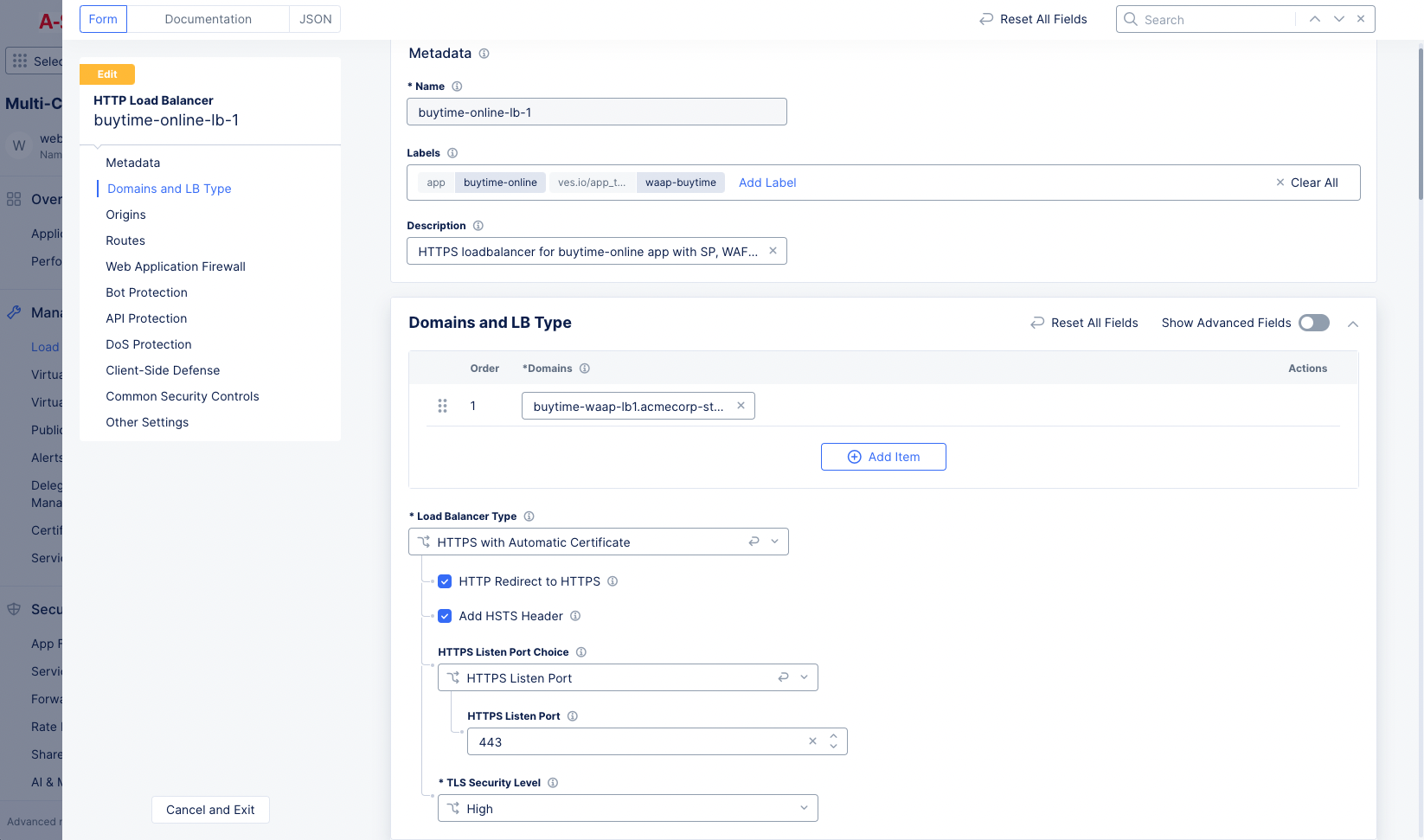
Step 2: Configure metadata, domains, and load balancer type.
In the Name field, enter a name for the new load balancer.
Optionally, select a label and enter a description.
Figure: Load Balancer Form
In the Domains field, enter a domain name. You can use wildcards to catch prefixes and suffixes.
Click Add item to add more domains, if needed.
From the Load Balancer Type drop-down menu, select an option. The following options are supported:
Select HTTP to create the HTTP load balancer.
Select HTTPS with Automatic Certificate to create the HTTPS load balancer with an automatic TLS certificate.
Select HTTPS with Custom Certificate to create the HTTPS load balancer with your custom TLS certificate.
Note: Do not add both wildcard and top level domains (for example, *.example.com and example.com) if you are using an automatic certificate for different load balancers.
Note: When looking at the Status or Global Status for a load balancer, statusObject is visible only when the certificate is of type automatic certification.
If you select HTTP, then select whether to have Distributed Cloud Services manage your DNS records with Automatically Manage DNS Records. This option requires you to have a primary zone set up in Distributed Cloud DNS.
If you select HTTPS with Automatic Certificate or HTTPS with Custom Certificate, then optionally, select HTTP Redirect to HTTPS and Add HSTS Header checkboxes.
For all load balancer types, use the HTTP Listen Port Choice to select between using a single port or a range of ports, and then enter the port number(s). For a range of ports, enter a list of non-overlapping port ranges with a maximum of 64 ports in the list, e.g. 443,100-120,8080,9080-9089.
If you are using HTTPS with Automatic Certificate, use the TLS Security Level drop-down menu to select the TLS level you want to use.
If you are using the HTTPS with Custom Certificate option:
Use the TLS Configuration drop-down menu to choose between TLS Certificates or Inline Certificate (legacy) options, and then click Configure.
From the TLS Security Level drop-down menu, select the desired level.
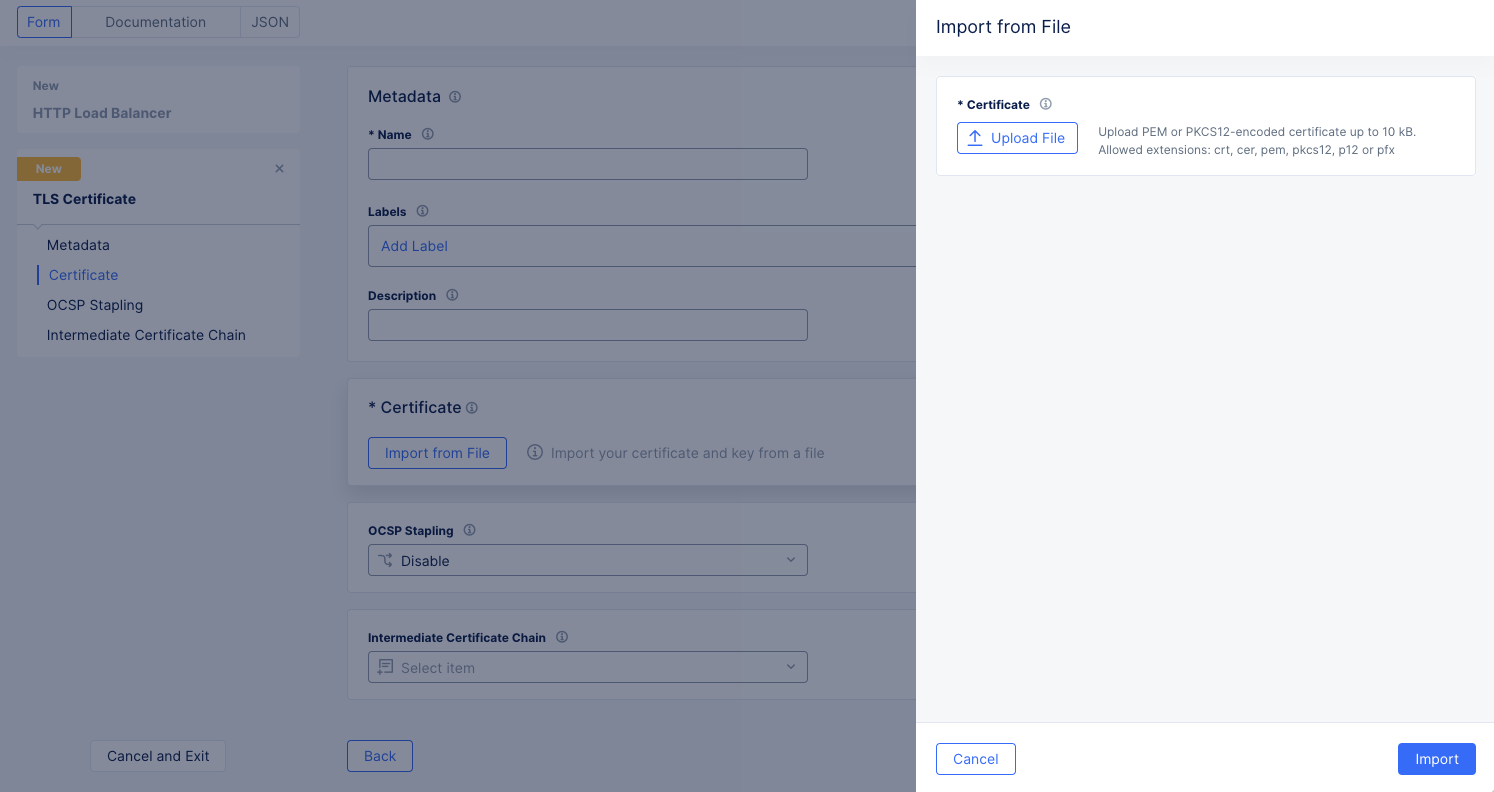
For each certificate you want to add, select Add Item from the Certificates drop-down menu to see the TLS Certificate form.
Figure: TLS Certificate Form
Enter a name and optionally labels and a description.
Click Import from File to see the sliding import panel. Click Upload File and select your file using the system file browser. Then click Import.
Note: If you would prefer to paste your certificate in rather than import from file, see Enable TLS on a Load Balancer.
From the OCSP Stapling choice drop-down menu, select an OCSP stapling choice.
If you have an intermediate chain, select Add Item from the Intermediate Certificate Chain drop-down menu. Then upload the intermediate chain the same way you uploaded the certificate.
Note: You can add more than one certificate using the Add Item option. However, only one certificate per encryption type (such as RSA and EC-DSA) is supported.
If you are using the HTTPS with Automatic Certificate option:
Note: If you created a DNS Zone for a domain for a deployed AWS customer edge (CE) site, and advertise that site using a virtual IP address (Internet VIP), an automatic certificate is generated. This is not available on other types of deployed sites.
Enable the Show Advanced Fields option.
From the Mutual TLS drop-down menu, select Enable or Disable for mutual TLS encryption:
Copy the CA certificate information into the Box using the PEM or Base64 option.
Check the Client Certificate Optional checkbox if you want the client certificate check to be optional. If the client certificate is available, it will be verified and the connection will be terminated if verification fails. If the client certificate is absent, the connection is accepted.
From the Verify client certificate with CR menu, select CRL to have the client certificate verified against the CRL, and then select the CRL.
From the Add X-Forwarded-Client-Cert Header menu, enable the adding of an X-Forwarded-Client-Cert (XFCC) proxy header to send client certificate details to the origin. You can choose to send the entire certificate, a single field, or multiple fields using the following: By, Hash, Cert, Chain, Subject, URI, and DNS.
From the Server Response Header drop-down menu, select an option for the server response header. The following options are supported:
Default: Specifies that the response header name is server, and the value is volt-adc.
Modify header value: Specifies that a custom value be added to the existing server header. This will overwrite existing values, if any, in the server header.
Append header value: Specifies that a custom value be added to the server header if no value is present. If there is an existing server header value, this option does not overwrite the value. Enter a header value in the Append header value field.
Do not modify: Specifies that the existing server header is passed as is. If no server header is present, a new header is not appended.
From the Path Normalization menu, select an option.
Step 3: Configure origin pools.
In the Origins section, click Add Item to create an origin pool.
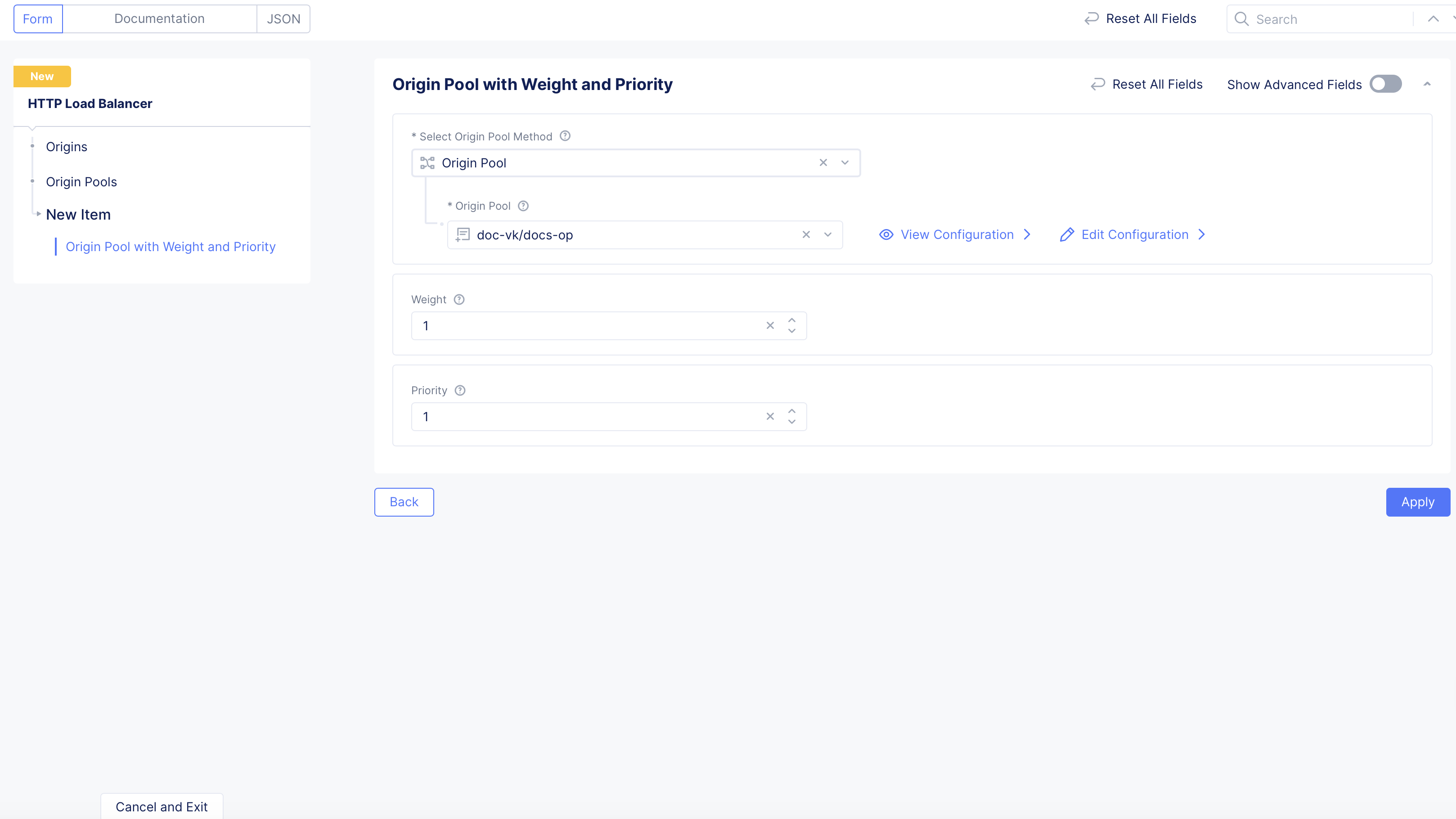
From the Select Origin Pool Method menu, select an option for a simple origin pool or a custom cluster:
Origin Pool: From the Origin Pool drop-down menu, select an origin pool. To create a new origin pool, click Add Item. Follow the instructions at Origin Pools.
Custom Cluster: From the Custom Cluster menu, select the cluster to use.
In the Weight field, set the numeric value.
In the Priority field, set the numeric value.
Click Apply.
Figure: Origin Pool Configuration
Step 3.1: Optionally, configure origin server subset rules.
Origin server subset rules provide the ability to create match conditions on incoming source traffic to the HTTP load balancer using country, ASN, regional edge (RE), IP address, or client label selectors for subset selection of destination (origin servers).
As prerequisites, (1) create a label (key-value pair), (2) in origin pool configuration, add labels to one or more origin servers, (3) and then in the Other Settings subsection, select Enable Subset Load Balancing. Add one or more keys to origin server subset classes. Choose a setting for subset fallback policy. The default option is to select any origin server.
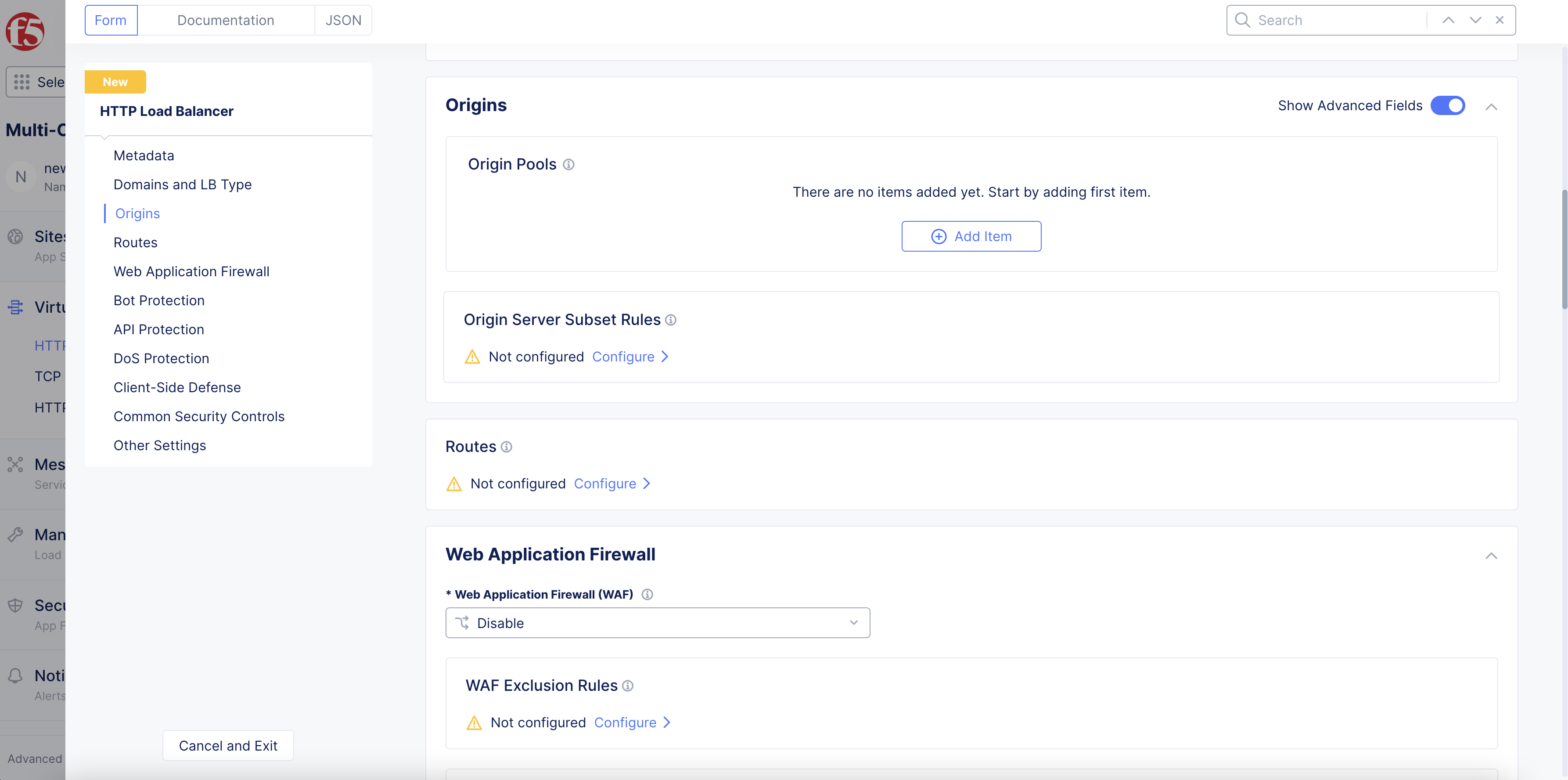
Enable the Show Advanced Fields option.
Under Origin Server Subset Rules, click Configure.
Figure: Origin Server Subset
Click Add Item.
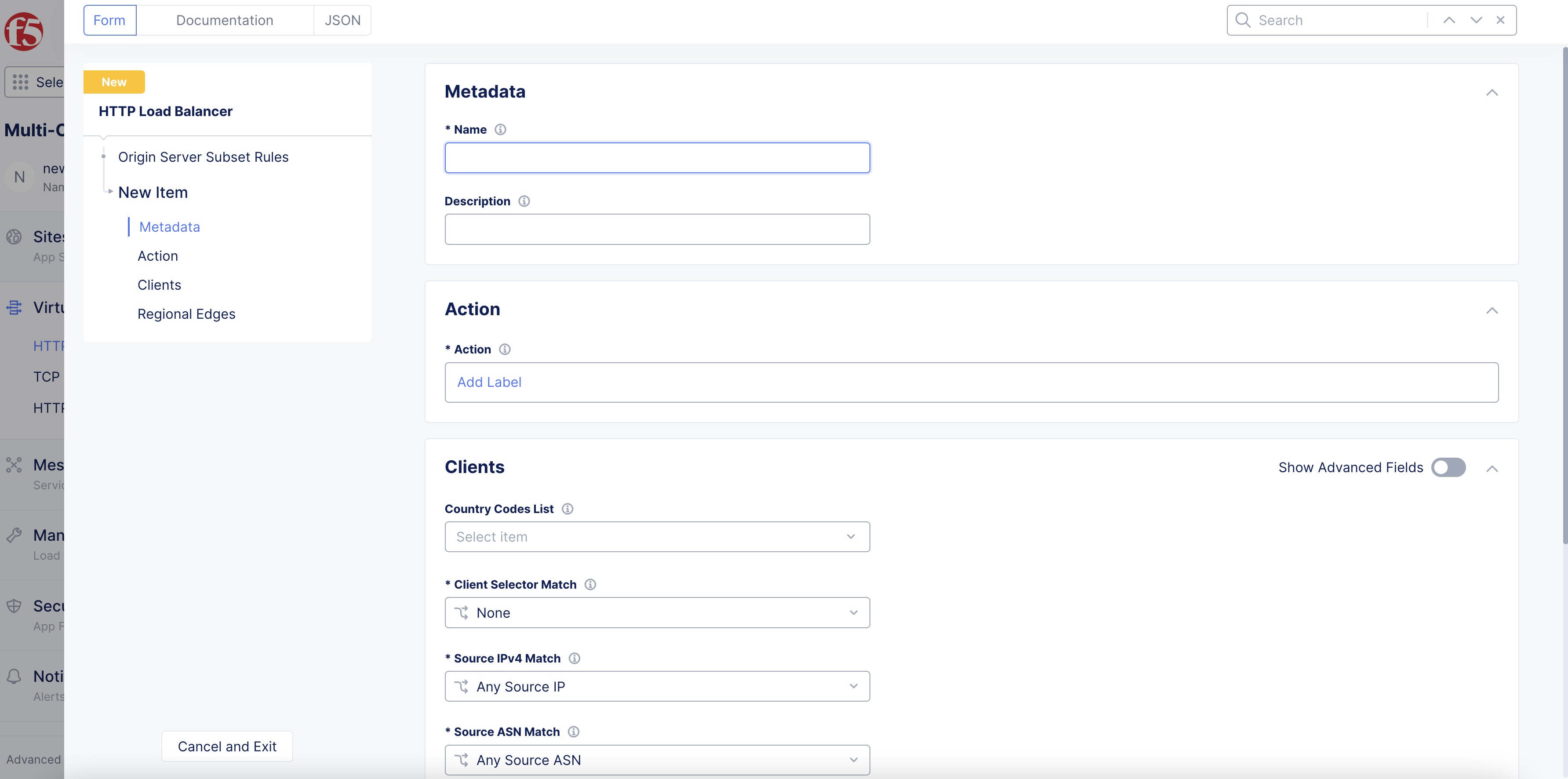
In the Name field, enter a name for the rule.
Figure: Origin Server Subset Rule Configuration
From the Action field, click Add Label and select the same label(s) that you assigned to origin servers in the origin pool configuration.
Optionally, select a country from the Country Codes List menu.
From the Client Selector Match menu, select an option to match on label selectors.
From the Source IPv4 Match menu, select an option to match on client IP address.
From the Source ASN Match menu, select an option to match on client ASN.
In the Regions Edges section, click Add Item to select an RE to match traffic to.
After you finish, click Apply.
Step 4: Configure Routes.
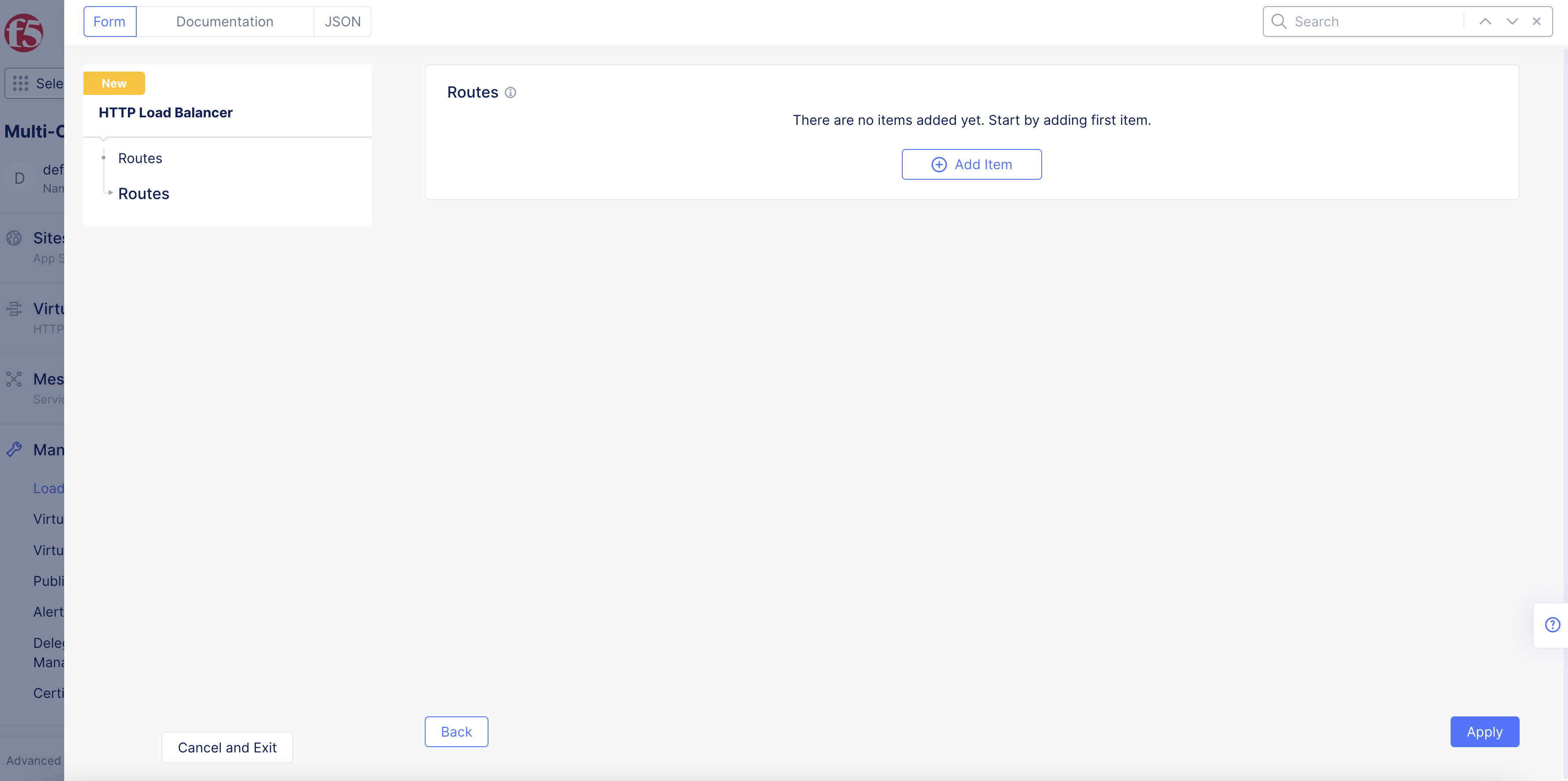
In the Routes section, click Configure.
Click Add Item.
Figure: Optional Routes Configuration
From the Select Type of Route menu, select an option.
Simple Route: matches a path and/or HTTP methods to forward the matching traffic to origin pools configured:
Select a method for HTTP Method.
Select the type of path match for the Path Match field.
Add a path prefix in the Prefix field. You can also configure specific origin pools and/or headers for this using the Add Item options in the Origin Pools and Headers sections.
From the Select Host Rewrite Method menu, select an option to specify how the host header can be modified during forwarding.
Select an option from the Query Parameters drop-down menu.
In the Advanced Options field, click Configure to configure advanced settings for each route.
Note: One of the advanced options is the Retry Policy, which allows you to specify when and how to retry based on the response code. You can select any of the following policies in the Select Retry Policy drop-down:
Use Default Retry Policy: The default Retry Policy is 1 retry done on the condition of 5xx, which means one retry will be performed if the upstream server responds with any 5xx response code or if it fails to respond (timeout, disconnect, and more).
Do not retry: Select this option if you do not want to configure a retry policy.
Custom Retry Policy: Select this option to configure a custom retry policy by providing values to the following fields:
Retry Condition: Specifies the condition when a retry must occur. You can select multiple conditions from the drop-down. For more information on the retry conditions, see Retry Policies.
Number of Retries: Specifies the allowed number of retries.
Per Try Timeout: Specifies the timeout for the retry in milliseconds.
Status Code to Retry: Specifies the HTTP status codes that must trigger a retry in addition to those specified by the retry conditions.
Base Retry Interval: Specifies the base time interval between retries.
Maximum Retry Interval: Specifies the maximum time interval between retries in milliseconds. This is an optional parameter. However, if you configure a value, ensure that it is greater than or equal to the Base Retry Interval. The default value is 10 times of the Base Retry Interval.
Ensure that the Per Try Timeout is greater than or equal to the max response time for an HTTP request, and the Routes Timeout is greater than or equal to No of Retries.
When only retriable-status-codes is specified in Retry Condition, the retry will be done only when the origin server returns any of the response codes configured under retriable-status-codes. If the origin server does not respond and timeout happens after the Per Try Timeout, then the retry is not attempted, as there is no response code from the origin server.
Redirect Route: matches a path and/or HTTP methods to redirect the matching traffic to another URL:
Select method for HTTP Method and a path for the Path Match field.
Add a path prefix in the Prefix field.
Configure the Redirect Parameters for Protocol, Host, Redirect Path for redirect URL, and Response Code.
Select an option from the Query Parameters drop-down menu.
Direct Response Route: matches a path and/or HTTP methods to send the response directly to the matching traffic:
Select method for HTTP Method and a path for the Path Match field.
Add a path prefix in the Prefix field.
Click the Configure option in the Direct Response field. Enter a response code, enter response body, and then click Apply.
Custom Route Object: uses an existing custom route object:
Under CSRF Policy, click Configure. From the Allowed Domains (Source Origin) menu, select an option. For Specified domains, enter the specific domain name. Click Apply.
Click Apply to add the route.
Note: You can click Add Item to add more routes per your requirements.
Step 5: Configure WAF and corresponding security features.
You can choose to disable WAF application (default setting) or you can select a WAF that was previously created, configured, and apply it in your load balancer security settings. In addition, you can also create and enable a new WAF and have your load balancer configured to exclude specific WAF rules from processing certain requests.
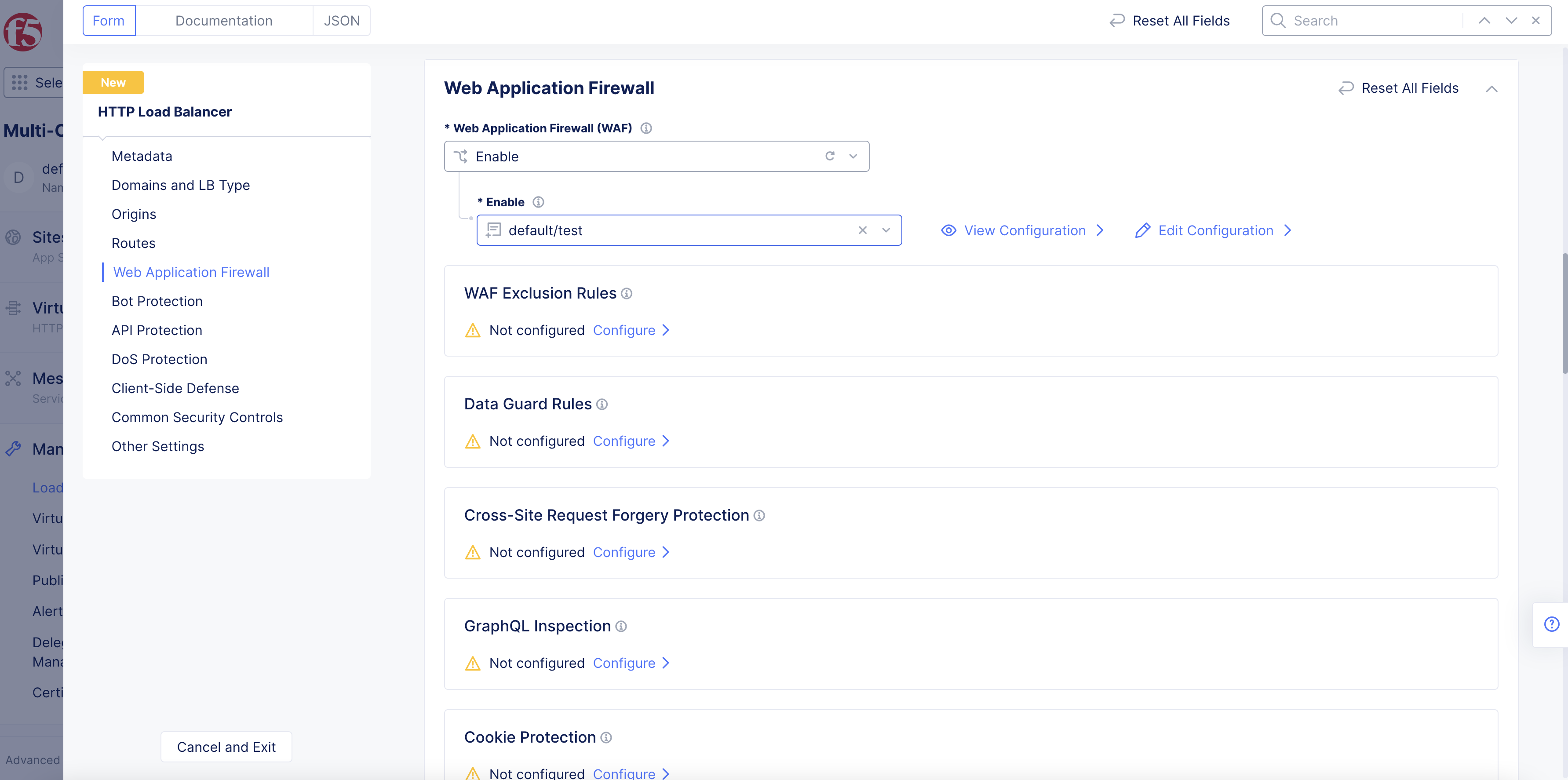
Go to the Web Application Firewall section.
From the Web Application Firewall (WAF) drop-down menu, select whether to enable the WAF for this HTTP load balancer. Disable is the default value.
If you select Enable, use the Enable drop-down menu to select your WAF to apply to this load balancer.
Figure: Add App Firewall
Note: You can also add App Firewall per route. In the route configuration, for Simple Route, go to advanced options configuration, go to security section, and select App Firewall for the Web Application Firewall (WAF) field. Select an App Firewall object. By default, the route inherits the App Firewall configured for the load balancer.
Select Configure in the Data Guard Rules section and follow the instructions listed in Configure Data Guard to set data guard rules.
Select Configure for the Cross-Site Request Forgery Protection option. Specify allowed domains in the Allowed Domains (Source Origin) field in the CSRF protection page, and select Apply. You can either configure to allow all load balancer domains or set specific domains to the allow list.
Note: You can verify the CSRF mitigation in the load balancer security monitoring page. The CSRF mitigation event is displayed as a Service Policy event. Expand the security event's JSON view. The sec_event_name field with value CSRF Policy Violation indicates that CSRF mitigation is active. For more information on load balancer monitoring, see Monitor HTTP Load Balancer.
To configure the settings for GraphQL inspection, perform the following:
Under the GraphQL Inspection section, click Configure.
Click Add Item.
In the Name field, enter a name for this rule.
From the Domain drop-down menu, select an option that corresponds to your domain setting. Default value is Any Domain. You can choose an option match by Exact Value or Suffix Value.
From the Path drop-down menu, select an option for the location of your GraphQL server endpoint. Default value is /graphql.
From the HTTP Method drop-down menu, select an option that specifies the method used to access the GraphQL endpoint server.
In the GraphQL Settings section, perform the following:
From the Maximum Total Length menu, enter a value to specify the maximum total length in bytes for a query.
From the Maximum Structure Depth menu, enter a value to specify the maximum depth for a query.
From the Maximum Batched Queries menu, enter a value to specify the maximum number of single batch queries.
From the Introspection Queries menu, select whether to enable introspection of GraphQL schema.
Click Apply to save settings.
Click Apply to apply settings to load balancer configuration.
Optionally, in the Cookie Protection field, click Configure to add attributes to an HTTP Response cookie that is sent to the client:
Click Add Item.
In the Cookie Name field, enter a name for this cookie.
Note: Wildcards and regular expressions (regex) are not supported. You must use the exact cookie name.
From the SameSite menu, select if or how the new cookie is sent with same-site and cross-site requests. You can select from the following:
Ignore
Strict
Lax
None
From the Secure menu, select whether this new cookie is sent only over an HTTPS encrypted connection to the server. Default option is Ignore.
From the HttpOnly menu, select whether this new cookie is inaccessible to JavaScript Document.cookie API. Default option is Ignore. Select Add to ensure the cookie is inaccessible.
Select Enable for the Cookie Tampering Protection field to enable cookie tampering protection. This prevents attackers from modifying the values of session cookies.
Click Apply to save settings.
Click Apply to apply settings to load balancer configuration.
Step 6: Configure Bot Protection.
Note: You need to have Bot Defense enabled in your tenant as a service prior to configuring it for your load balancer.
Go to the Bot Protection section. From the Bot Defense menu, select an option to configure bot defense. The following options are available:
Disable: No bot defense configuration is applied to the load balancer.
Enable: Specifies a bot defense configuration for you to apply to the load balancer. Follow the instructions listed in the Configure Bot Defense guide to set Bot defense protection for your load balancer.
Step 7: Configure API protection.
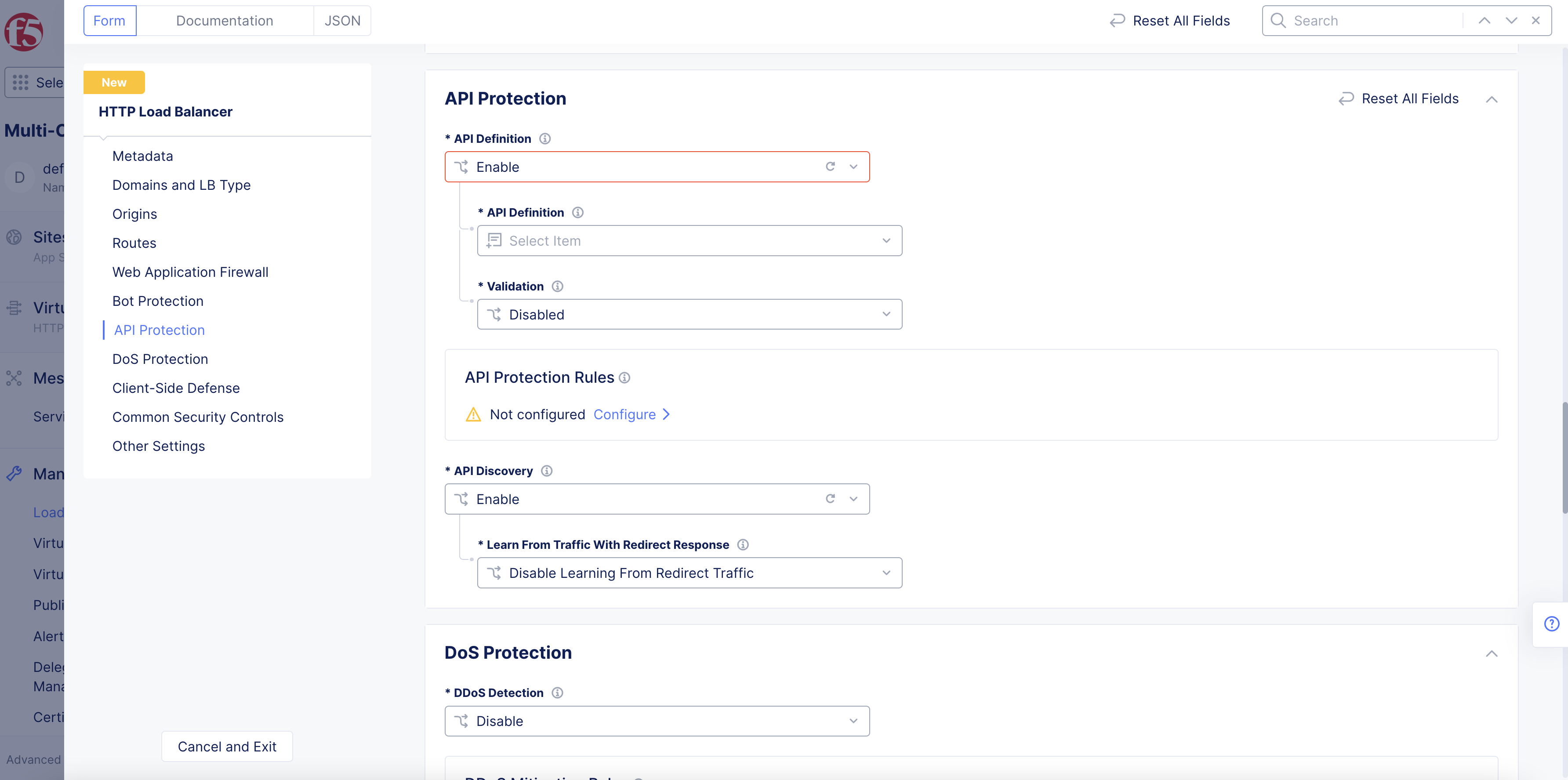
TheAPI Protection section provides a number of different API protection capabilities.
Step 7.1: API Definition.
From the API Definition menu, select whether to use an API definition. The default value is Disable, meaning an API definition is not used for this load balancer.
If you select Enable:
From the API Definition menu, select the API definition.
To create a new definition, click Add item.
Figure: Enable API Definition
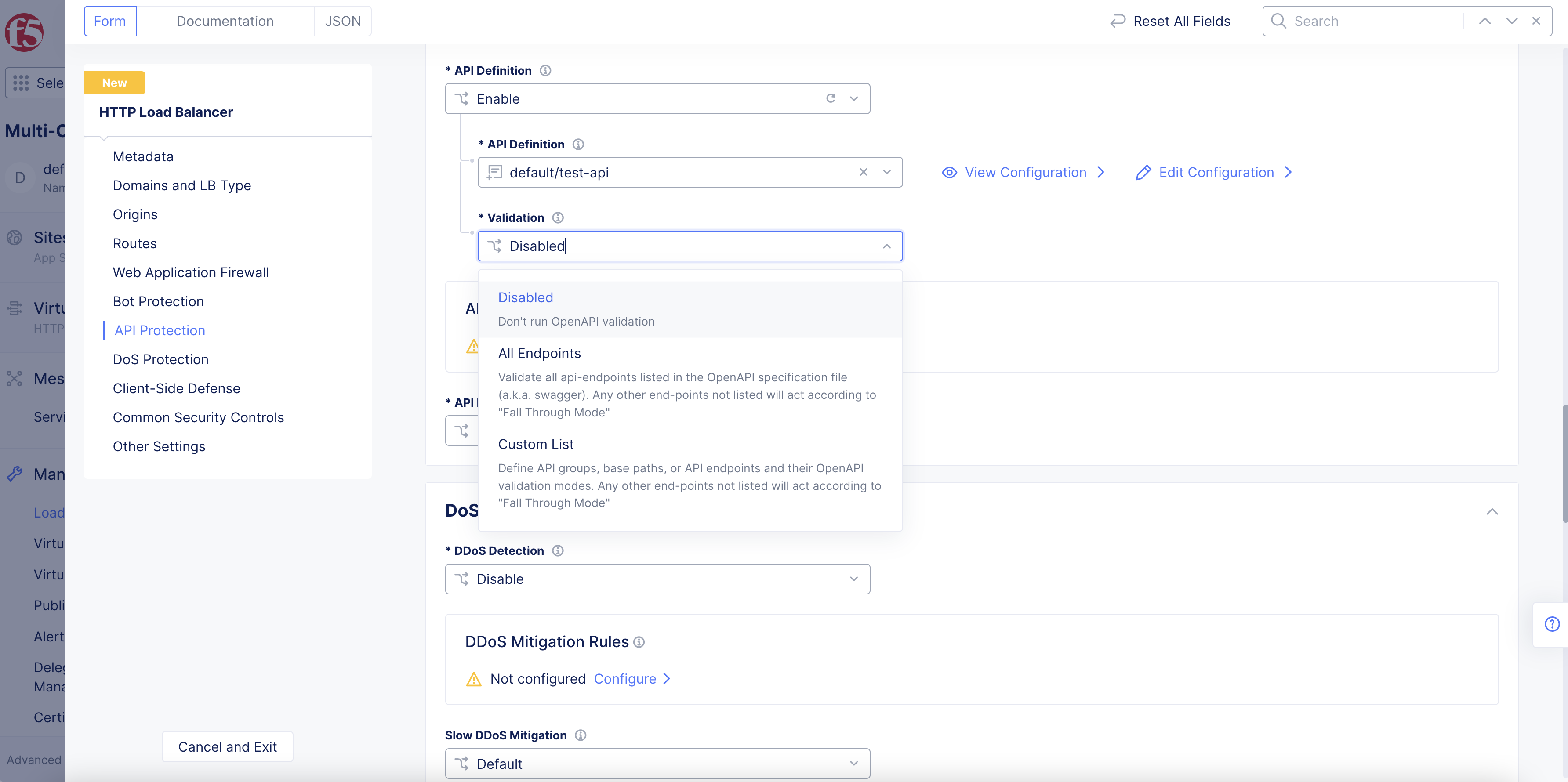
From the Validation menu, select an option to perform OpenAPI specification validation. Following are the options:
Disabled: Default option. No validation is performed.
All Endpoints: Validate all endpoints listed in the OpenAPI specification file. Any other endpoints not listed will act according to Fall Through Mode.
Custom List: Define API groups, base path, or API endpoints and their validation modes. Any other endpoints not listed will act according to Fall Through Mode.
Figure: API Validation Options
Note: OpenAPI Validation is a feature that ensures API traffic complies with the specified schema and can block or report non-compliant traffic. Validation can be configured on a per-endpoint, per-group, or per-base-path basis. The Fall Through Mode allows for identifying and handling Shadow APIs by either blocking, reporting, or allowing them. Allowed IPs list can be created to pass OpenAPI Validation by specific IP addresses.
From the OpenAPI Validation Processing Mode menu, select whether to Validate or Skip.
From the Validation Enforcement Type menu, select an option to specify the type of enforcement.
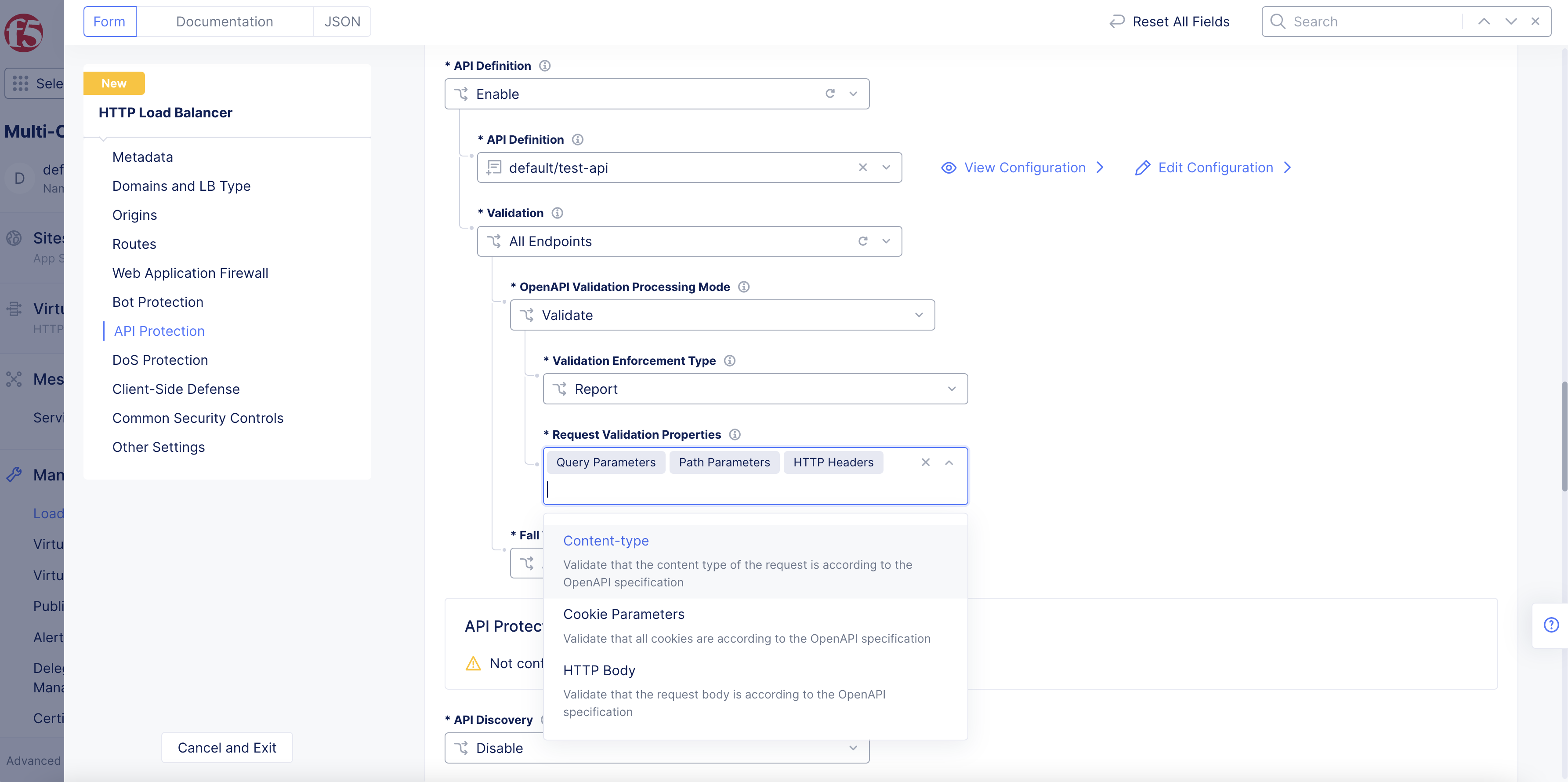
From the Request Validation Properties menu, select one or multiple options from the following:
Query Parameters: The incoming requests are validated against the query parameters specified in the API definition.
Path Parameters: The incoming requests are validated against the path parameters specified in the API definition.
Content-type: The incoming requests are validated against the content-types specified in the API definition.
Cookie Parameters: The incoming requests are validated against the cookie parameters specified in the API definition.
HTTP Headers: The incoming requests are validated against the HTTP headers specified in the API definition.
HTTP Body: The incoming requests are validated against the HTTP body specified in the API definition.
Figure: Request Validation Properties
From the Fall Through Mode menu, select an action for every request that targets endpoints which are not in validation list.
Step 7.2: Optionally Configure API Protection Rules.
Click Configure in the API Protection Rules field.
This feature allows you to cryptographically verify incoming JSON web tokens (JWTs) before they are passed to origin APIs. This can prevent JWT replay attacks, JWT tampering, and it can block requests with expired tokens or tokens that are not yet valid.
Under JWT Validation, click Configure.
From the Target menu, select whether to perform validation on all endpoints, specific API groups, or a specific path.
Target location(Bearer) will look for the JWT token in the Authorization HTTP header with Bearer authentication scheme.
From the Action menu, select whether to block or report if the JWT is not valid. See the following options:
Report action: In monitoring mode, the request is allowed to pass through, and the security event is logged.
Block action: The request will be blocked, a 401 Unauthorized error will be returned, and the security event is logged.
Under JSON Web Key Set (JWKS), click Configure.
In the text box, copy and paste the JSON Web Key Set (JWKS) used for authorization with the server. JWKS should be in JSON format.
Click Apply.
In the Reserved Claims Validation section, perform the following:
From the Issuer (iss) menu, select whether to match exactly the issuer’s reserved claim, or to disable this functionality. If you choose to match exactly, provide the exact match value in the corresponding field.
From the Audience (aud) menu, select whether to match exactly the JWT pre-configured value, or to disable this functionality. If you choose to match exactly, provide the exact match value in the corresponding field. You can add more than one value to match for using Add Item.
From the Validation Period menu, select Enable (default value) or Disable. Enable selection will validate the JWT expiration and not before (nbf) values (if present in the request token). Disable selection will not perform validation against these fields. After you finish with configuration, click Apply.
In the Mandatory Claims section, perform the following:
Click Add Item. Enter the name of the claim. It must match the claim already present in the payload, in the JWT. After you finish with configuration, click Apply. If you need to delete a claim, click ... and then click Delete.
From the API Discovery menu, select Enable to enable API discovery.
From the Purge Duration for Inactive Discovered APIs menu, enter a number to represent the number of days worth of inactive Discovered APIs to purge.
To manage rules for sensitive data detection, click Configure and perform the following:
To disable specific data types from detection, click Add Item under the Disabled Built-In Sensitive Data Types section. Then select the data type from the menu list. You can select more than one option.
To define custom rules for data types to detect, click Add Item under the Defined Custom Sensitive Data Types section:
Enter a name for this new custom rule.
From the Type menu, enter a value for the type of sensitive data.
From the Rule's Target menu, select if this rule applies to all detected endpoints or a specific endpoint. If specific only, select the API Endpoint and Methods.
From the Section menu, select where to apply the rule during the search process. You can choose the default value to search all requests and responses header sections, only request, only responses, or a custom search. For custom, select your options to search from the header sections. You can choose more than one option from the Custom Sections menu.
From the Pattern Choice menu, select how to search for the sensitive data. You can search by Key Pattern, Value Pattern, or Key-Value Pattern. For each of these options, you can search by exact value or using regular expressions (regex) using the menu options provided.
Click Apply to complete rule creation.
Click Apply to add the new rule to the configuration.
API Discovery samples traffic through the load balancer to build a schema of an app's API endpoints, and it can also generate a swagger definition file.
From the API Discovery menu, select Enable to start the discovery process. The default value is Disable, meaning an API discovery will not be done.
From the Learn From Traffic With Redirect Response menu, choose whether to enable learning from redirect traffic (requests resulting in a 3xx response code).
In the Purge Duration for Inactive Discovered APIs (d), enter the number of days for the API endpoint to live. If no 2xx responses occur from an endpoint (or 3xx if so configured) occur for the span of days entered, then the API endpoint will be removed.
Click Configure in the API repositories section to setup the API code repositories (e.g. Github, Gitlab, BitBucket, or Azure Repos) to the load balancer as the source for API endpoint discovery.
Step 7.5: Sensitive Data Discovery (or Sensitive Data Policy).
This feature allows you to configure a policy for for how sensitive data is detected. You can specify which privacy or compliance frameworks (PCI_DSS, HIPAA, GDPR, etc.) to use when detecting sensitive data, you can disable specific sensitive data types, and you can add your own sensitive data types.
Select Default to use system defaults for sensitive data discovery.
Select Custom for a custom data discovery. Next select an existing policy from the Specify Sensitive Data Discovery drop-down list, or click Add Item in the list to create a new policy.
For a new policy,
Enter a name for the policy and optionally labels and a description.
Select one or more entries from the Compliance Frameworks drop-down list. These frameworks will define the set of sensitive data types that will be detected.
For each specific sensitive data type you would like to disable (these will not be shown as sensitive in the API discovery), click Add Item under Disabled Built-In Sensitive Data Types and then select a data type from the drop-down list.
To define your own sensitive data types, click Configure in the Defined Custom Sensitive Data Types section. Next, for each data type you want to add, click Add Item to get a blank entry in the Defined Custom Sensitive Data Types List. Select an existing entry in the drop-down list or click Add Item in the list to create a new one.
For a new sensitive data type,
Enter a name an optionally labels and a description.
Click Configure to create the datatype rules. For each rule, click Add Item.
Select an entry in the Pattern Choice drop-down menu: Key Pattern, Value Pattern, or Key-Value Pattern.
Select an entry in the Pattern drop-down menu and then enter the value or substring to match.
Click Apply to save the detection rule and then click apply to save the rule list.
Ensure that Mark as Sensitive Data is checked.
Check Mark as PII if this data type is personally identifiable information (PII). This allows the system to classify discovered sensitive data appropriately.
Click Continue to save the new data type.
Click Apply to save the list of defined custom sensitive data types.
Click Continue to save the new custom policy.
Once this feature is configured, you will be able to see which API endpoints contain sensitive data and which API compliance framework(s) they are governed by. These will be shown on the Overview > Security page under the API Endpoints tab. Make sure the Sensitive Data and API Compliance columns are visible to see the information. There, you can also see the information by examining the endpoint details. See Explore Security Monitoring for a Load Balancer for more information on monitoring.
Step 7.6: Optionally Configure Sensitive Data Exposure Rules.
This feature allows you to specify rules to mask sensitive data in API responses.
Click Configure in the Sensitive Data Exposure Rules section.
Click Add Item to create the first rule.
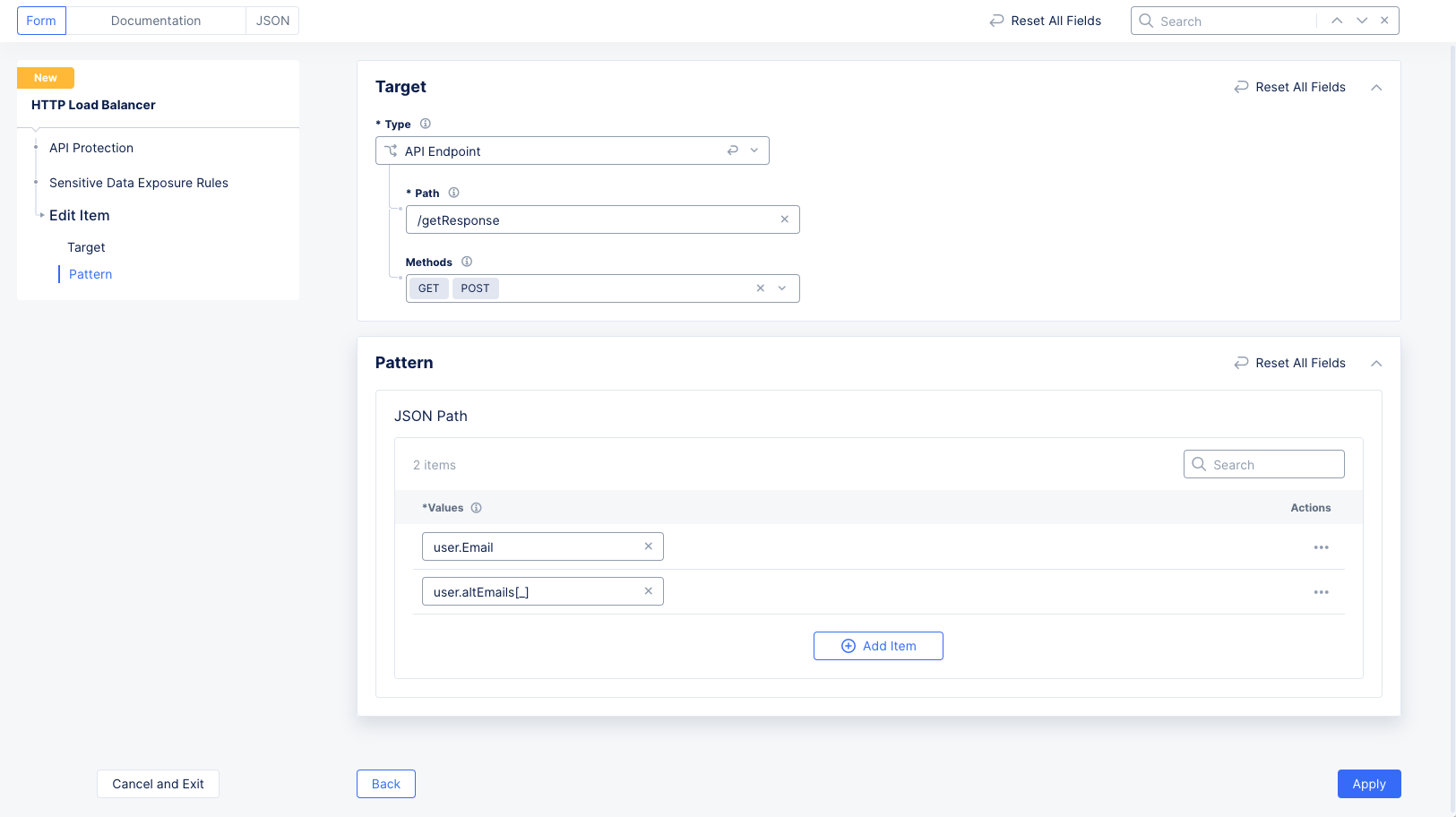
In the Target section, enter the path that will respond to the request. Also enter one or more methods with responses containing sensitive information.
In the Values field in the Pattern section, enter the JSON field value you want to mask. For example, given the JSON below is the response,
To mask all emails in the array altEmails, enter user.altEmails[_]. Note that an underscore between the square brackets indicates the array's elements.
Masked values in the response will be masked as follows: All letters changed to a or A (matching case) and all numbers converted to1. Thus the response example above will be masked as shown below:
Note: To apply masking to nested objects, the exact location of the key must be specified. For the example shown below,
{
"A": {
"B": {
"key1": "val1",
"key2": "val2"
}
}
}
the masking configuration should be set as A.B.key1 or A.B.key2, depending on which value you want to mask.
Click Apply to save the rule to the list of Sensitive Data Exposure Rules.
Click Add Item to add more rules.
Click Apply to save the list of rules to your load balancer.
Step 8: Configure Malware Protection.
Malware protection guards against uploaded files infected with malicious content. All filetypes, except compressed files such as .zip, .tar, .gz, are scanned, including the following:
Executable files (e.g. .exe, .bat, .csh)
Document files (e.g. .doc, .pdf, .xlsx)
Image files (e.g. .jpg, .png, .bmp)
Video files (e.g. .avi, .mp4, .mov)
Audio files (e.g. .mp3, .aac, .wav)
Files that exceed 1 MB in size will only have their first 1 MB scanned. That partial scan will be used to determine whether the file is malicious or not.
Note: This feature is an add-on and must first be enabled in the catalog in order to enable it in a load balancer.
Select Enable from the Malware Protection drop-down menu to enable file upload scanning in real time to protect against malware.
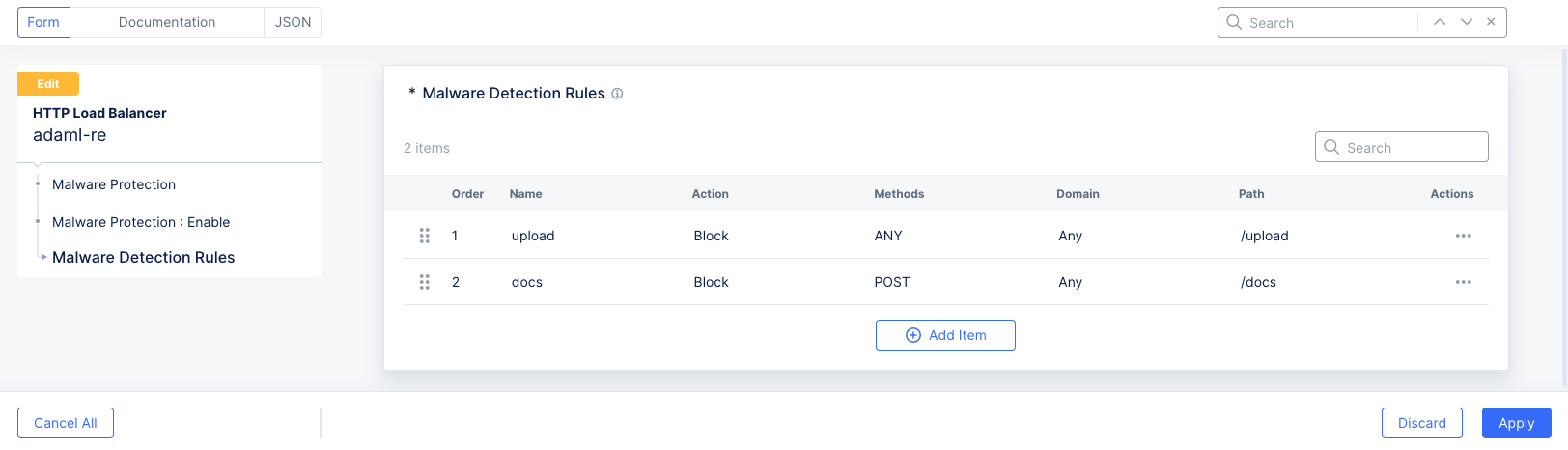
Click Configure to create a list of malware detection rules.
Figure: Malware Detection Rules
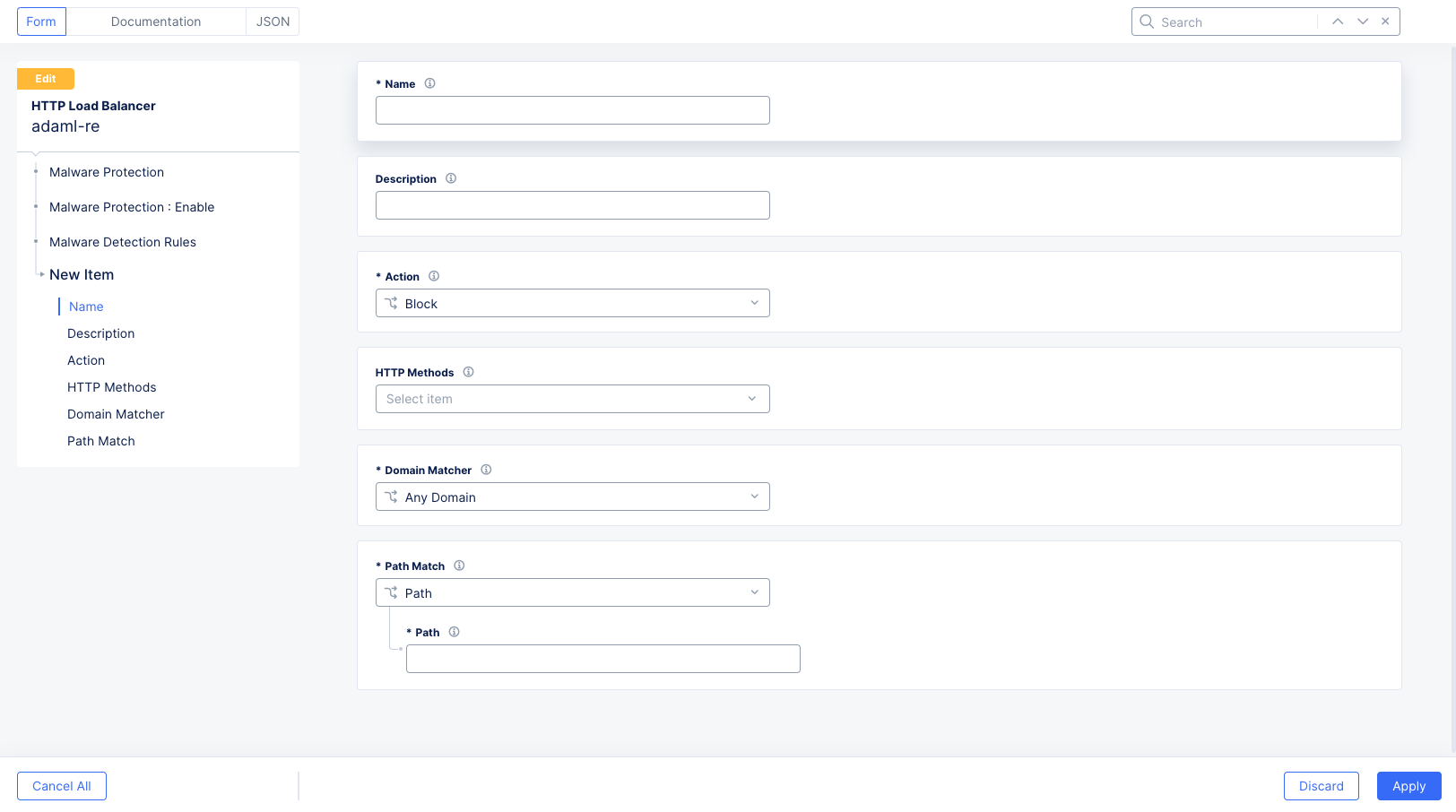
Click Add Item to add a malware detection rule.
Figure: Malware Detection Rule Form
Enter a name for your rule and optionally a description.
In the Action drop-down menu, choose what to do when a match occurs (defined in the following steps). Block will deny the upload request and report the issue. Report will allow the upload request and report the issue.
In the HTTP Methods drop-down menu, choose which HTTP methods you want to match in this rule. You can select multiple methods.
From the Domain Matcher drop-down menu, select
Any Domain: All domains will use this rule.
Domain: Only the domains you specify will use this rule. You can specify the domains by Exact Value (only the domain that you specify will use this rule), Suffix Value (domains with your specified suffix will use this rule: e.g. x.abc.com and y.abc.com will use this rule if you enter abc.com), and Regex Values of Domains (any domain that matches your entered regular expression will use this rule).
From the Path Match, enter the exact path to match.
Click Apply to save the rule to your rules list.
Click Apply to save your rules list.
Step 9: Configure DoS Protection.
From the L7 DDoS Auto Mitigation menu, select an option:
Default: This option blocks traffic from suspicious sources. No JavaScript challenge is returned.
Block: This option blocks traffic from suspicious sources. No JavaScript challenge is returned.
JavaScript Challenge: This option serves a JavaScript challenge to all traffic from suspicious sources. Click View Configuration to change the default settings and message for the JavaScript challenge.
Under DDoS Mitigation Rules, select Configure to open the rules list page. Use Add Item to add a rule:
In the DDoS Mitigation Rule page, set a name for the rule.
Select a choice for the Mitigation Choice menu. The mitigation choice can be either a list of IP addresses or combination of ASN, Region, and TLS Fingerprinting.
Click Apply to add the rule to the list of rules.
Click Apply to add the rules list to the DDoS protection configuration.
From the Slow DDoS Mitigation menu, select an option:
For the Custom option, enter Request Headers Timeout and Total Request Timeout values.
Note: See the Explore Security Monitoring section in the Monitor HTTP Load balancer guide to learn more about observing and reacting to an active DDoS attack.
Step 10: Configure Client-Side Defense.
Ensure that this service is enabled for your tenant. See Client-Side Defense for more information and configuration instructions.
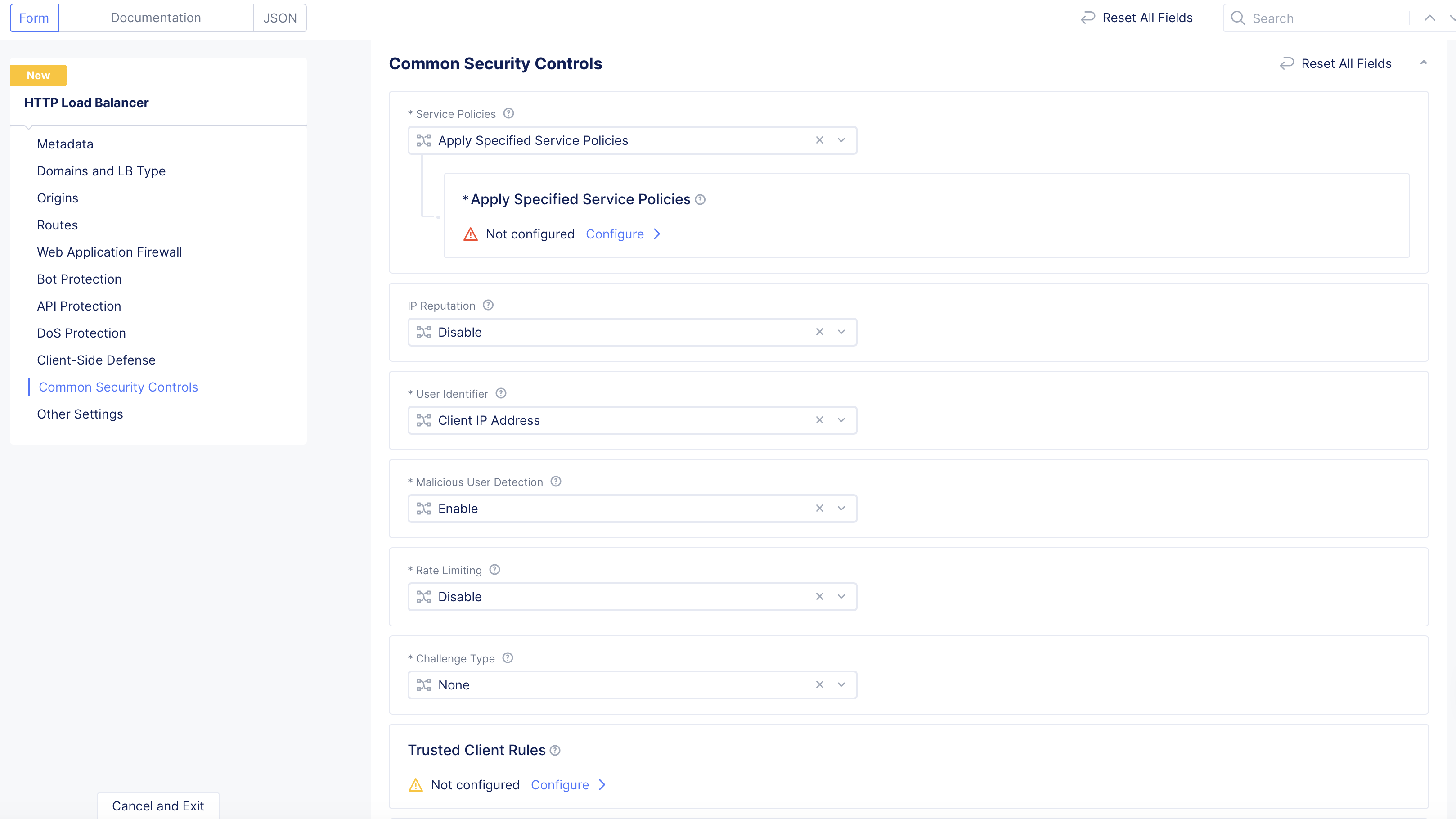
Step 11: Configure Common Security Controls.
Go to the Common Security Controls section and perform the following:
Step 11.1: Configure Service Policies.
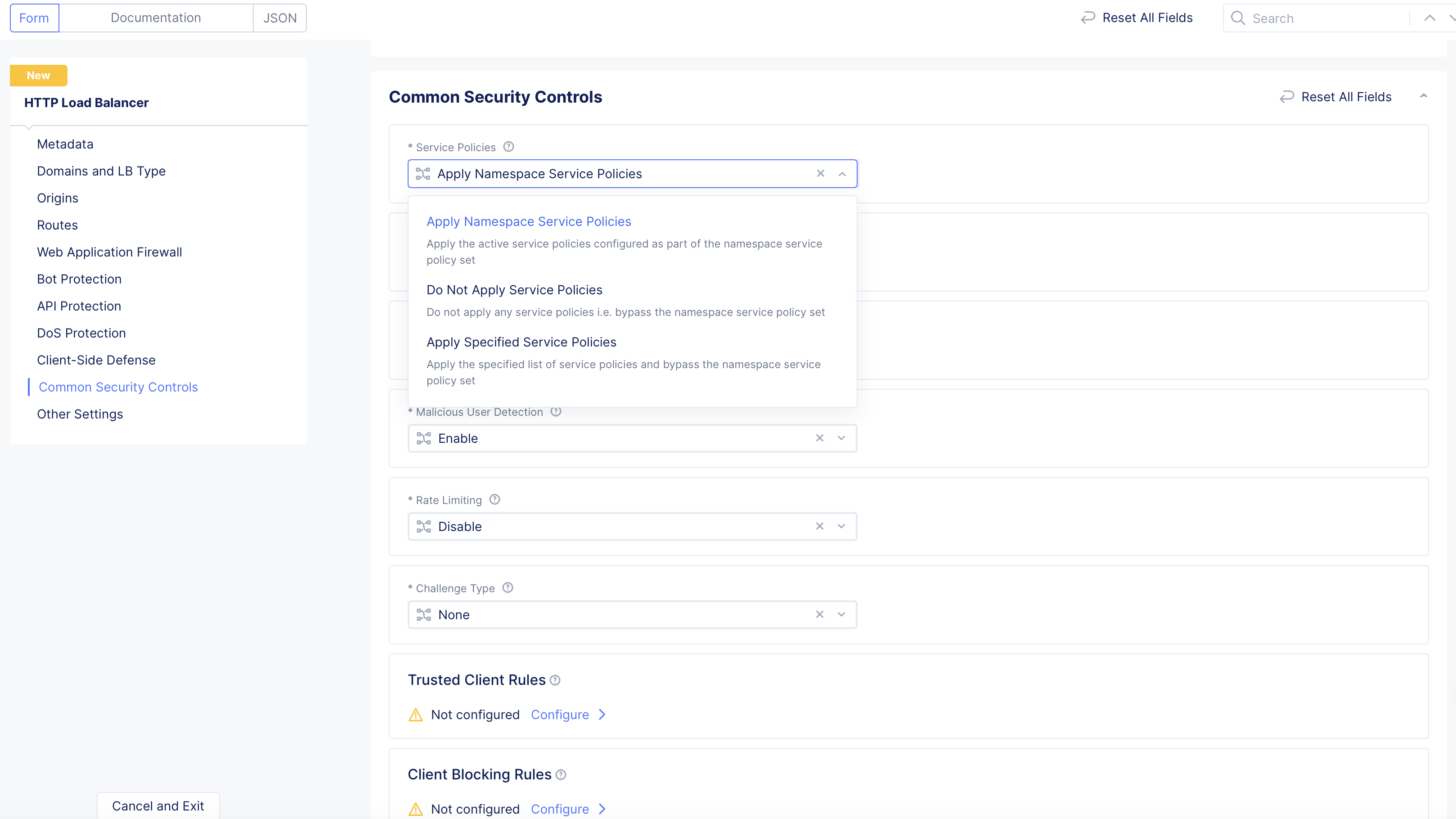
From the Service Policies menu, select an option for how to apply one or more service policies to this load balancer. The following options are available:
Figure: Service Policy Configuration
Apply Namespace Service Policies: This option applies the service policies from the namespace to this load balancer.
Do Not Apply Service Policies: This option does not apply any service policies to this load balancer.
Apply Specified Service Policies: This option allows you to apply one or more specific service policies to this load balancer.
Figure: Apply Specific Service Policy
Click Configure to add service policies.
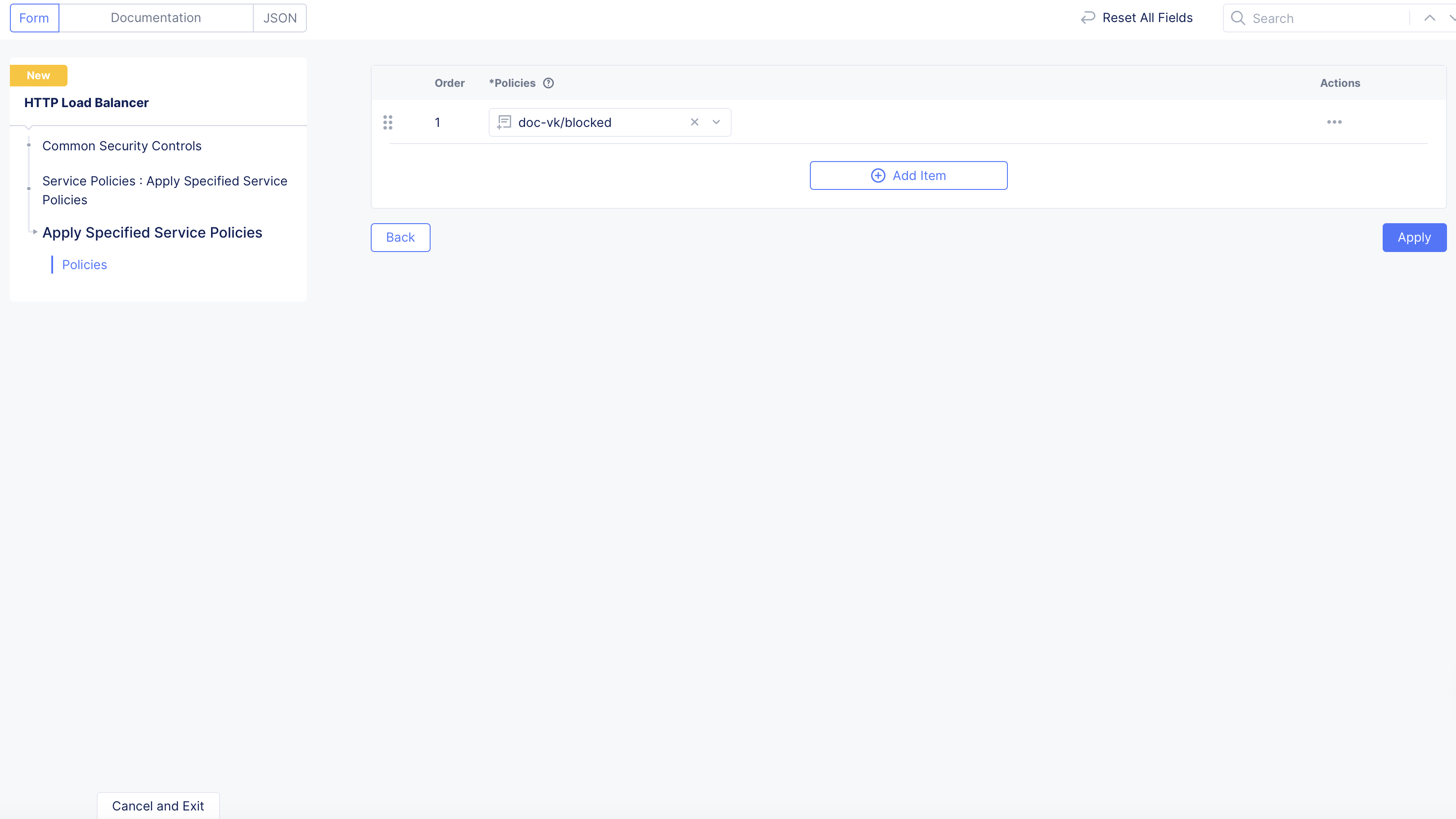
Figure: Select Specific Service Policy
In the Policies list, select a service policy, from the drop-down menu.
Use the Add Item button to add more policies to the list.
Click Apply when you're finished building the list.
Step 11.2: Configure IP Reputation service.
The IP reputation service analyzes IP threats and publishes a dynamic data set of millions of high-risk IP addresses, to protect users from inbound traffic from malicious IPs. IP threat categories include Spam Sources, Windows Exploits, Web Attacks, BotNets, Scanners, Denial of Service, Reputation, Phishing, Proxy, Mobile Threats, and TOR Proxy.
Threat Mesh provides F5 Distributed Cloud customers with an additional layer of protection against web application attacks.
Threat Mesh leverages cross-customer correlation (i.e. correlation of client attacks across different customers) to identify malicious intent of a client.
Whenever a client is flagged due to a malicious intent by our WAAP decisions engines, that client will be added to the ThreatDB.
Enabling Threat Mesh means that requests coming into an application from an IP that is in the ThreatDB will be automatically blocked by the load balancer.
Requests that are blocked due to Threat Mesh can be seen and evaluated in the Web App & API Protection workspace on the Overview > Security > Security Analytics tab for a specific load balancer and the Multi-Cloud App Connect workspace on the Overview > Applications > Security Analytics tab for a specific load balancer. Blocked requests will show as a Service Policy violation in the Event Type column with Threat Mesh in the Threat Name column. For more information, see Load Balancer Security Monitoring in the Security Analytics section.
From the Threat Mesh drop-down menu, select the Enable or Disable for the feature.
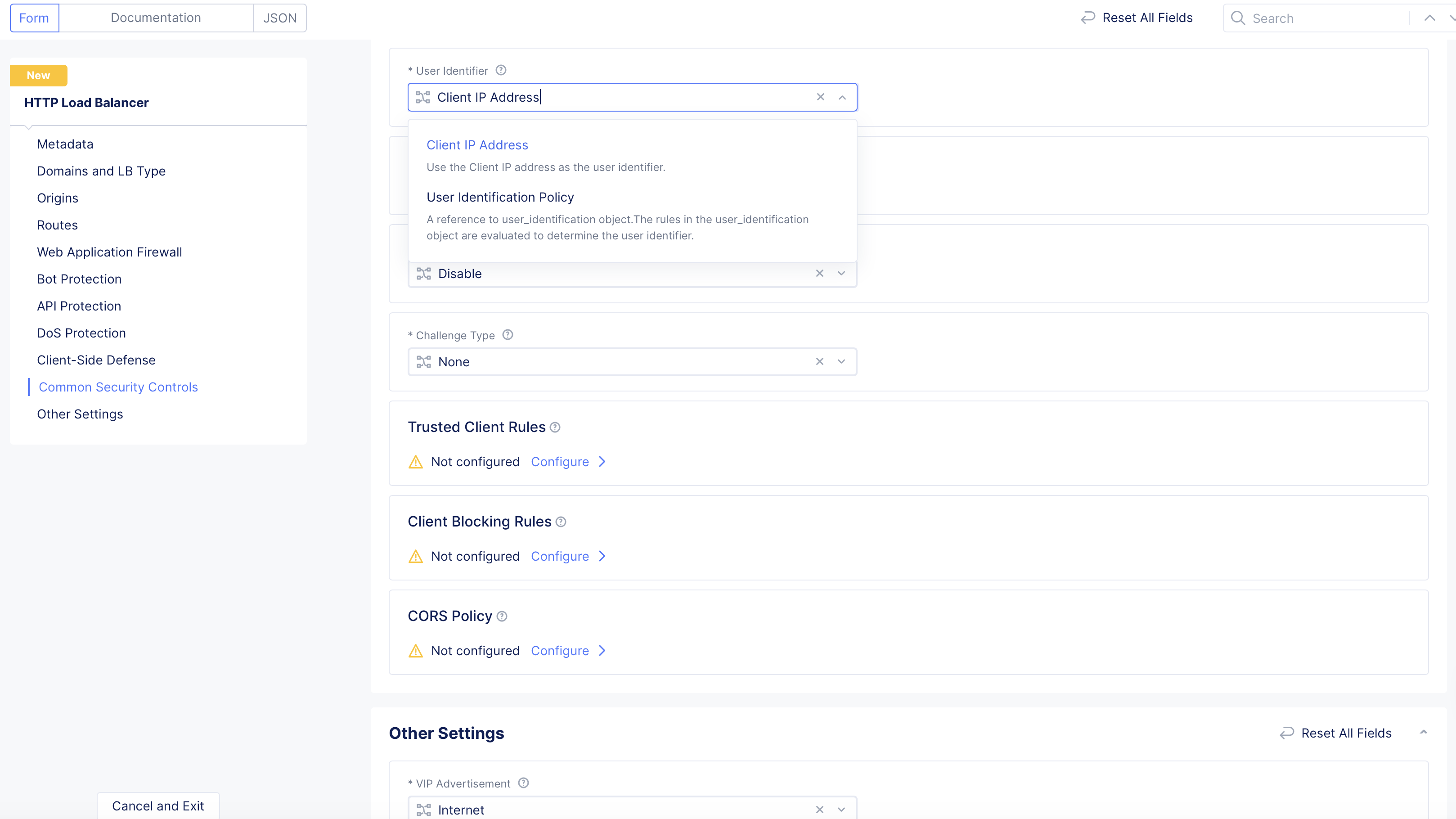
Step 11.4: Configure User Identification.
Select a user identifier for rate limiting and malicious user mitigation.
From the User Identifier drop-down menu, select the method for user identification:
Select Client IP Address to use the user's IP address.
Select User Identification Policy to use the object to evaluate the identity. To create a new user ID, click Add item from the User Identification Policy menu.
Malicious User Detection performs user behavior analysis and assigns a risk score and threat level of low, medium or high based on the suspicious activity of the user. The risk score of the user is decayed over time, if no further suspicious activity is noticed. The feature can be configured also via external app_type and labeling this HTTP Load Balancer. In this case, the external app_type configuration overrides the internally disabled feature. Enabling the feature internally is allowed only when there is no labeling to an external app_type.
From the Malicious User Detection drop-down menu, select Enable.
Step 11.6: Configure Malicious User Mitigation And Challenges.
In the Common Security Controls section, enable the Show Advanced Fields option.
From the Malicious User Mitigation And Challenges drop-down menu, select Enable. This option enables you to configure a challenge for users detected as malicious.
Note: For the JavaScript Challenge, Captcha Challenge, and Policy Based Challenge options, you can enable a challenge for all users and/or requests matching specific conditions. For any of these options, click View Configuration to create that challenge for users/requests that meet specific criteria.
From the Malicious User Mitigation Settings menu, select an option for malicious users at different threat levels:
Default: Applies low, medium, and high levels.
Custom: Defines different levels and actions to take. Select an option from the Custom menu. Or click Add Item to create a custom option.
From the JavaScript Challenge Parameters menu, select the type of JavaScript challenge to enable:
JavaScript Challenge Parameters: This option enables you to configure a custom JavaScript challenge for this load balancer. Click Configure. Set the delay value, cookie expiration value, and custom message to use. After you finish, click Apply. For more information, see Configure JavaScript Challenge.
Use Default Parameters: This option sets the default challenge with no customization.
From the Captcha Challenge Parameters menu, select the type of captcha challenge to enable:
Use Default Parameters: This option takes the default settings and applies them.
Captcha Challenge Parameters: This option enables you to define the challenge parameters. Click Configure. Set the cookie expiration value and the custom message to use. After you finish, click Apply.
Policy Based Challenge
If you selected Policy Based Challenge, perform the following:
Click View Configuration.
Configure the JavaScript, captcha, and malicious user settings.
Select a challenge type.
In the Rules section:
Click Configure.
Click Add Item.
Enter a Name value and an optional description.
In the Challenge Rule Specification field, select View Configuration.
From the Select Challenge Action Type drop-down menu, select the challenge action to take. Disable challenge is the default setting. The two options include Enable javascript challenge and Enable captcha challenge.
From the Source IP Match drop-down menu, select the source IP to match the requests. The options include:
Any Source IP: This option enables any source IP to match requests.
IP Prefix List: This option provides a list of prefix values. You must provide a list of IP prefixes.
IP Prefix Sets: This option provides a list of references to IP prefix set objects. You must create the prefix set.
From the Source ASN Match drop-down menu, select an option for the origin Autonomous System Number (ASN) to match requests:
Any Source ASN: This option matches any source ASN.
ASN List: This option provides a list of ASN values to match requests. You must enter the ASN values.
BGP ASN Sets: This option provides a list of references for Border Gateway Protocol (BGP) ASN objects to match requests. You must create the ASN set.
From the Client Selection drop-down menu, select how the clients will match the challenge rules. The options include:
Any Client: This option is for all clients to match the challenge rules.
Group of Clients by Label Selector: This option provides a label selector for the set of clients. You must select the expression from the list.
To configure the TLS fingerprint matcher, select Configure:
From the TLS fingerprint classes drop-down menu, select a class.
Optionally, you can add an exact value or exclude a value with Add item.
Click Apply.
Optionally, you can set the parameters for the request matching from the Request Match section, and you can set an optional Expiration Timestamp from the Advanced Match section.
Click Apply.
Click Apply.
Click Apply.
Click Apply.
Step 11.7: Configure Rate Limiting.
Rate Limiting allows you to control the rate of requests sent to your origin servers and protect against API traffic surge and denial of services attacks.
To configure rate limiting, select an option from the list:
Disable: Default option. No rate limiting enabled for this load balancer.
API Rate Limit: Set rate limiting for specific API endpoints.
Custom Rate Limiting Parameters: Allows you to set custom parameters to rate limit.
These rules define specific clients for which WAF processing and Bot Defense will be skipped. Add rules to allow trusted clients based on the match conditions configured. You can skip WAF, skip bot processing, or both. The match conditions include IP prefix, AS number, and HTTP headers to identify specific clients.
To configure the Trusted Client Rules option:
Click Configure, and then click Add Item.
Complete the configuration process to add rules to allow trusted clients and to prevent the WAF from applying the block rules you previously configured.
Click Apply.
Select the newly created rules option and then click Apply.
Step 11.9: Configure Client Blocking Rules.
You can choose match condition rules, such as IP prefix, AS number, and HTTP headers to identify specific clients to block from accessing your applications.
To configure the Client Blocking Rules option:
Click Configure, and then click Add Item.
Complete the configuration process to add rules to block specific clients from making requests.
Click Apply.
Select the newly created rules option, and then click Apply.
Step 11.10: Configure CORS Policy.
The Cross-Origin Resource Sharing (CORS) policy is an HTTP-header based mechanism that allows a server to indicate any origins (domain, scheme, or port) other than its own from which a browser should permit loading resources.
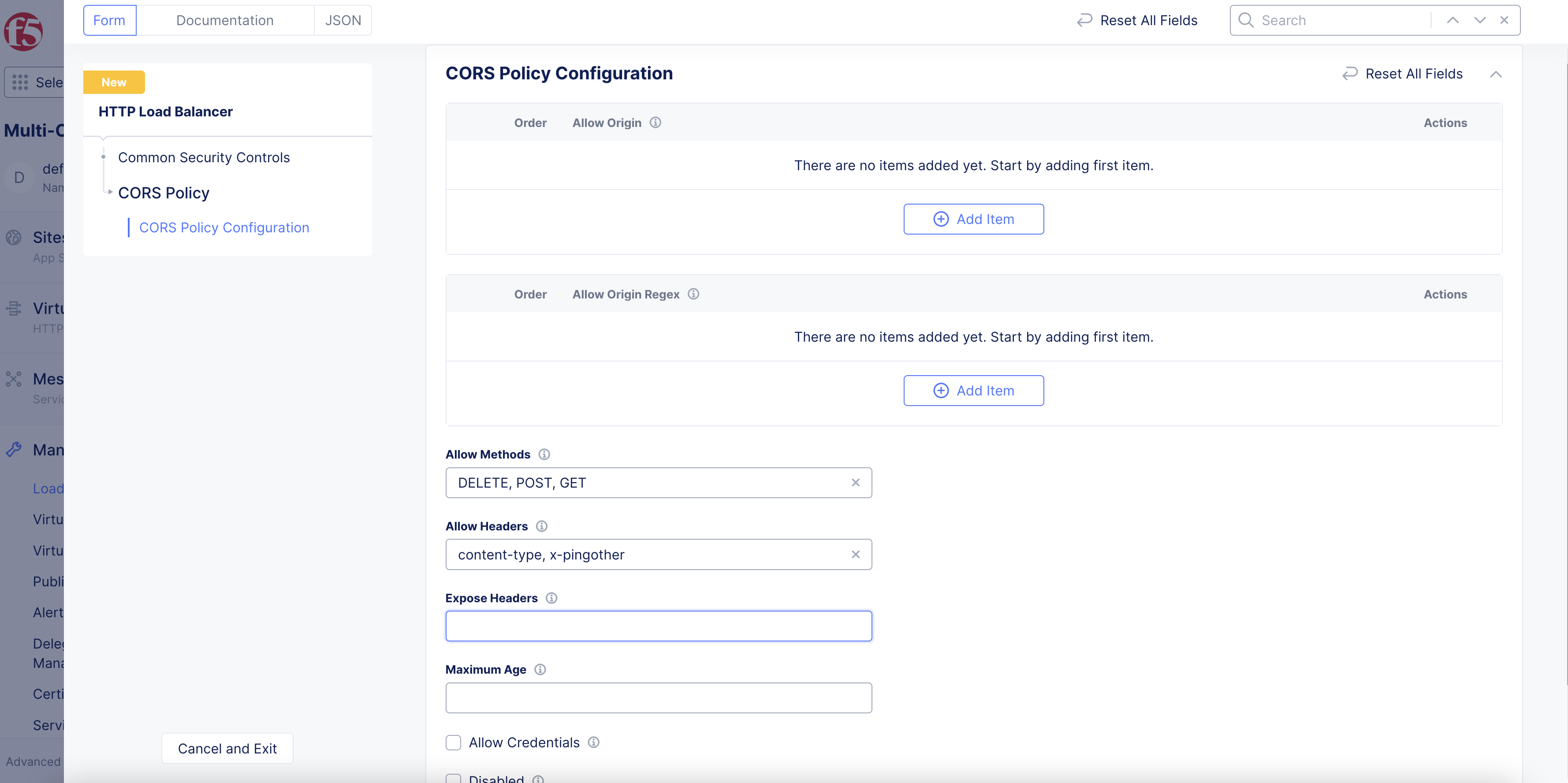
In the CORS Policy field, click Configure.
To enable a specific origin server, click Add item under the Allow Origin field.
To enable origin servers by regex, click Add item under the Allow Origin Regex field.
In the Allow Methods field, enter information to be used for the access-control-allow-methods header.
In the Allow Headers field, enter information to be used for the access-control-allow-headers header.
Important: When you enable Bot Defense on your HTTP load balancer, Bot Defense adds the following headers to the Allow Headers field in your CORS policy: Xa4vrhYP3Q-a, Xa4vrhYP3Q-a0, Xa4vrhYP3Q-b, Xa4vrhYP3Q-c, Xa4vrhYP3Q-d, Xa4vrhYP3Q-e, Xa4vrhYP3Q-f and Xa4vrhYP3Q-z. These headers are required for Bot Defense to support requests that use CORS.
In the Expose Headers field, enter information to be used for the access-control-expose-headers header.
Figure: CORS Policy
In the Maximum Age field, enter information in seconds to cache the headers.
After you finish, click Apply.
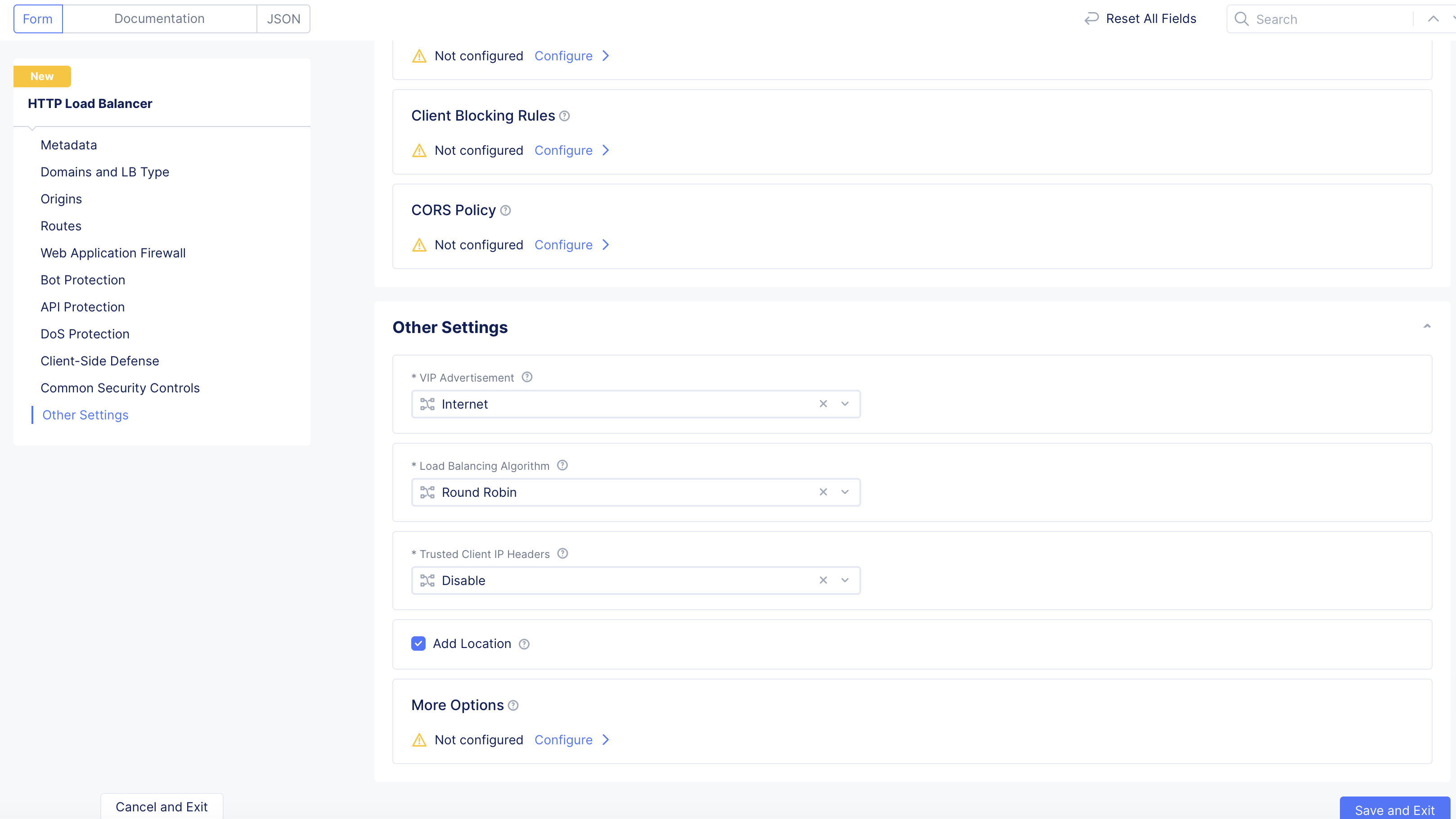
Step 12: Configure Other Settings.
In the Other Settings section, perform additional configuration.
Step 12.1: Configure VIP advertisement.
From the VIP Advertisement drop-down menu, select from one of the options available:
Select Internet to advertise the default VIP on the public network.
Select Internet (Specified VIP) and enter an IP address in the Public IP field to advertise that IP as VIP on a public network.
Select Custom. Click Configure in the Advertise Custom field, and then click Add Item for each site you want to advertise. Perform the configuration per the following guidelines for each site:
From the Select Where to Advertise menu, select an option for where a load balancer should be advertised.
Choose Site:
From the Network drop-down menu, choose a network type to be used on the site.
Select a Site Reference object from the drop-down menu.
Optionally enable the Show Advanced Fields option and enter an IPv4 and/or an IPv6 to be used as the VIP on the site.
Choose Virtual Site:
From the Network drop-down menu, choose a network type to be used on the site.
Select a Site Reference object from the drop-down menu.
Choose vK8s Service Network on RE:
Select RE or Virtual Site Reference from the drop-down menu.
Select a reference (RE or virtual site) from the associated Reference drop-down menu.
Choose Virtual Network:
Select a network reference from the Network drop-down menu.
Select Default V4 VIP or Specific V4 VIP from the Select V4 VIP drop-down menu. If you select a specific one, then enter the specific V4 VIP.
Select Default V6 VIP or Specific V4 VIP from the Select V6 VIP drop-down menu. If you select a specific one, then enter the specific V6 VIP.
Choose Segment on Site:
Select a segment from the Segment drop-down menu.
Select a site from the Site drop-down menu.
Enter the IPv4 address of the VIP on the site.
Enter the IPv6 address of the VIP on the site.
Choose Segment on Virtual Site:
Select a segment from the Segment drop-down menu.
Select a virtual site from the Virtual Site Reference drop-down menu.
Enter the IPv4 address of the VIP on the virtual site.
Enter the IPv6 address of the VIP on the virtual site.
Choose Segment on Cloud Edge:
Select a segment from the Segment drop-down menu.
Select a cloud edge from the Cloud Edge drop-down menu.
Enter the IPv4 address of the VIP on the cloud edge.
Enter the IPv6 address of the VIP on the cloud edge.
Configure a TCP listener port or select a default option for the TCP Listen Port Choice field. The default option sets port 80 for the HTTP load balancer and 443 for the HTTPS load balancer.
Click Apply to save the site to advertise to the list. Then click Apply to save the list of sites to advertise.
Select Do Not Advertise to disable VIP advertisement.
Note: If you have enabled Internet VIP on the AWS cloud site to allow clients to access Load Balancer VIP directly from the internet, set the VIP Advertisement selection to Custom, and then configure the custom VIP advertisement to advertise on a Site or Virtual Site with Site Network set to either Outside Network with internet VIP or Inside and Outside Network with internet VIP. For more information, see Create AWS Site.
Note: The following ports are not supported for advertising on a Distributed Cloud Services site:
K8s node port range 28000-32767
Distributed Cloud Services port range 65000-65535
10249
10250
10251
10252
10256
10257
10259
1067
18091
18092
18093
18095
22
22222
2379
23790
23791
2380
23801
23802
323
4500
500
53
5355
6443
68
8005
8007
8087
8443
8444
8505
8507
9007
9090
9153
9999
Step 12.2: Configure Load Balancing Algorithm.
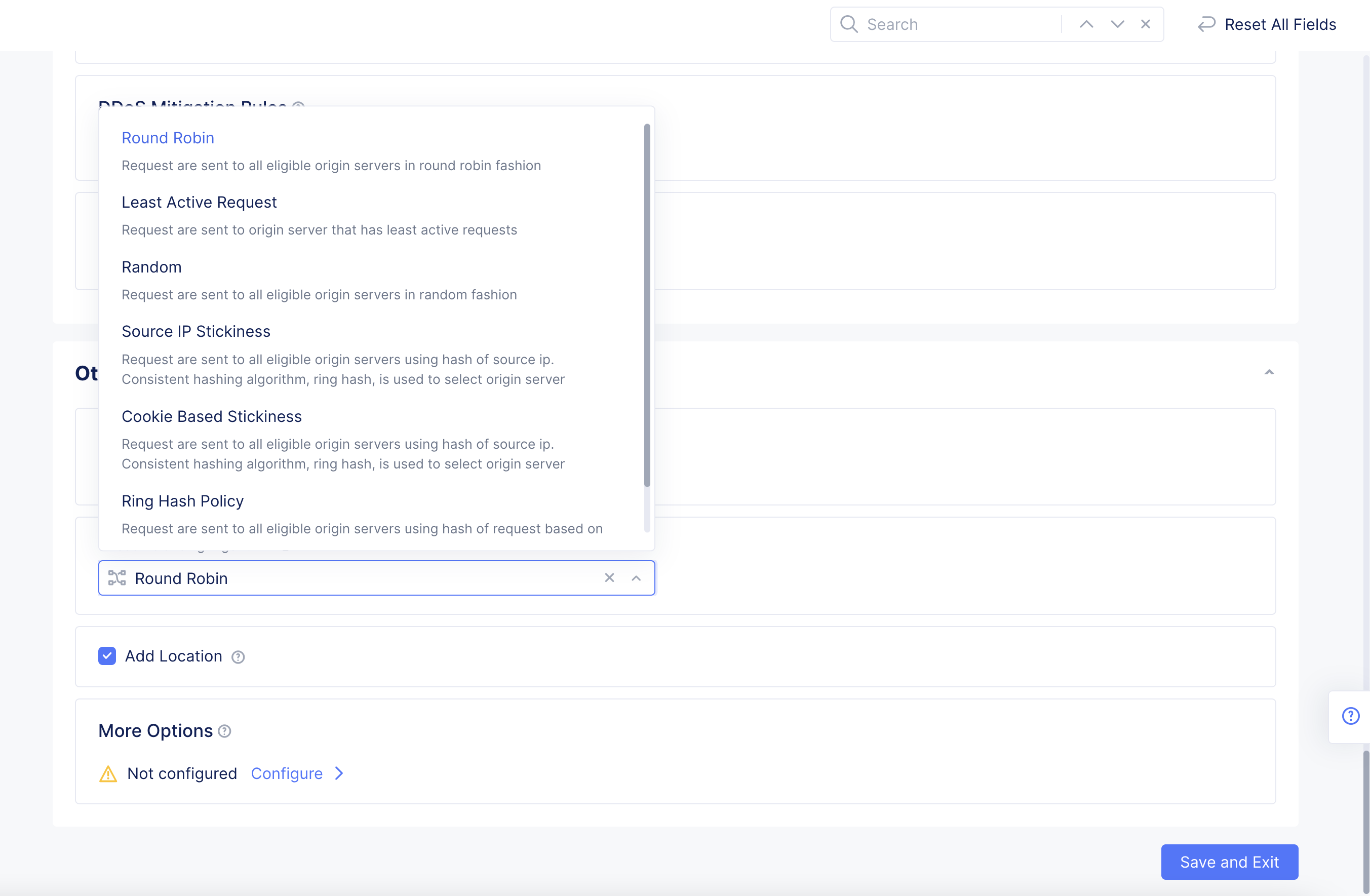
From the Load Balancing Algorithm menu, set how the HTTP/HTTPS requests are load balanced. The options include:
Round Robin: This option sends requests to all eligible servers in a round robin fashion.
Least Active Request: This option sends requests to an origin server that has least active requests set.
Random: This option sends requests to all origin servers randomly.
Source IP Stickiness: This option sends requests to all origin servers using the hash value of the source IP.
Cookie Based Stickiness: This option sends requests to all origin servers using the hash value of the cookie. The cookie can be passive or generated. The consistent hashing algorithm, ring hash, is used to select the origin server. Requires you to further configure the parameters.
Ring Hash Policy: This option sends requests to all origin servers using the hash value of the request. Requires you to further configure the parameters.
Figure: Load Balancer Control
If you select Cookie Based Stickiness:
In the Name field, enter a name for the cookie.
Optionally, set a TTL value in milliseconds and set a path name value.
If you select Ring Hash Policy:
Click Configure to specify a list of hash policies to use.
Click Add Item.
From the Hash Policy Specifier drop-down menu, select what to apply the hash policy to. The options include:
Cookie: Hash policies are applied to a cookie.
Header Name: Hash policies are applied to the name of key of the request header used to obtain the hash key.
Source IP: Hash policies are applied to the source IP address.
In the Name field, enter a name for the cookie that is used to obtain the hash key.
To apply the hash policy as a terminal policy, select the Terminal option.
Click Apply.
Select the newly created hash policy, and then click Apply.
Step 12.3: Configure Trusted Client IP Headers.
Select the Enable from the Trusted Client IP Headers drop-down menu.
Use Add Item button to add one or more headers. The headers are processed in the numerical order they are added, as shown on the page.
When trusted client headers are enabled, system uses real client IP address as the source IP, instead of the proxy's IP address. The following apply when configuring trusted client IP headers:
When multiple headers are configured, F5 Distributed Cloud platform follows top to bottom precedence. This means initially first header is considered and system checks for its availability in the request. If not present in the request, system proceeds to check for the second header, and so on, until one of the listed headers is found.
When none of the configured headers exists, or the value of the configured header is not an IP address, then the source IP of the packet is used.
When multiple IP addresses are available in header value, system reads the rightmost IP address, and considers it as real Client IP address. However, when using the X-Forwarded-For header, and if multiple IPs are available in value, the system reads the rightmost-1 IP address, and considers it as real client IP address.
Step 12.4: Configure Add Location and More Options.
Select the Add Location checkbox to specify the regional edge (RE) site name in the header responses.
Figure: Enable RE Site Header Responses
Click Configure in the More Options field and perform the configuration per the following guidelines:
In the Header Options section, click Add Item and add details in each of the request headers and response headers fields to specify add and remove headers accordingly.
In the Configure Error Response Options section, click Configure to customize error responses.
In the Miscellaneous Options section, click Configure. Complete the configuration options.
Click Apply.
Step 13: Complete creating the load balancer.
Click Save and Exit.
Step 14: Verify the load balancer status.
Note: If the load balancer is of type HTTP, then it is reachable by configured domains as well as automatically generated CNAME.
Distributed Cloud DNS Managed Domain:
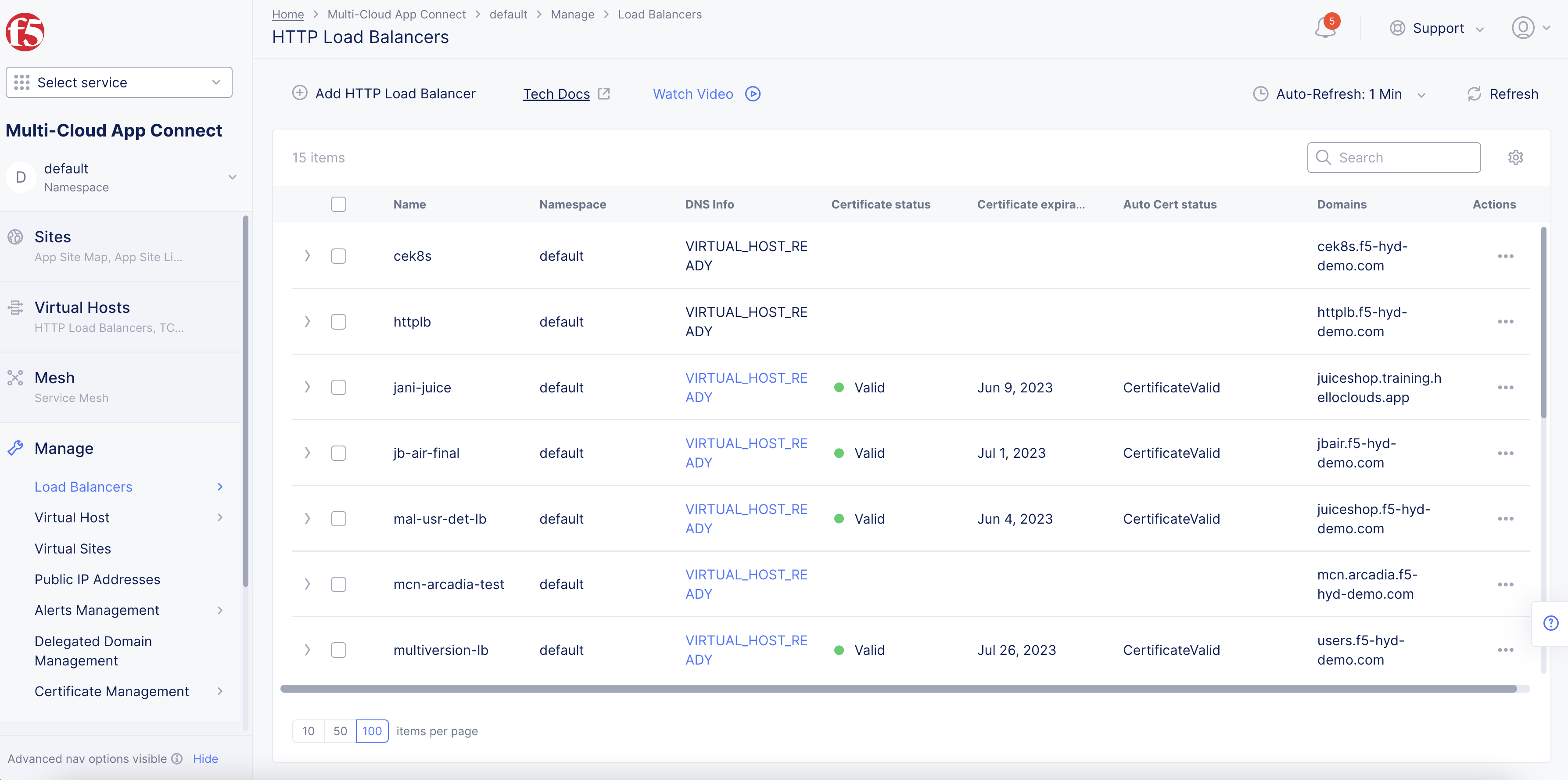
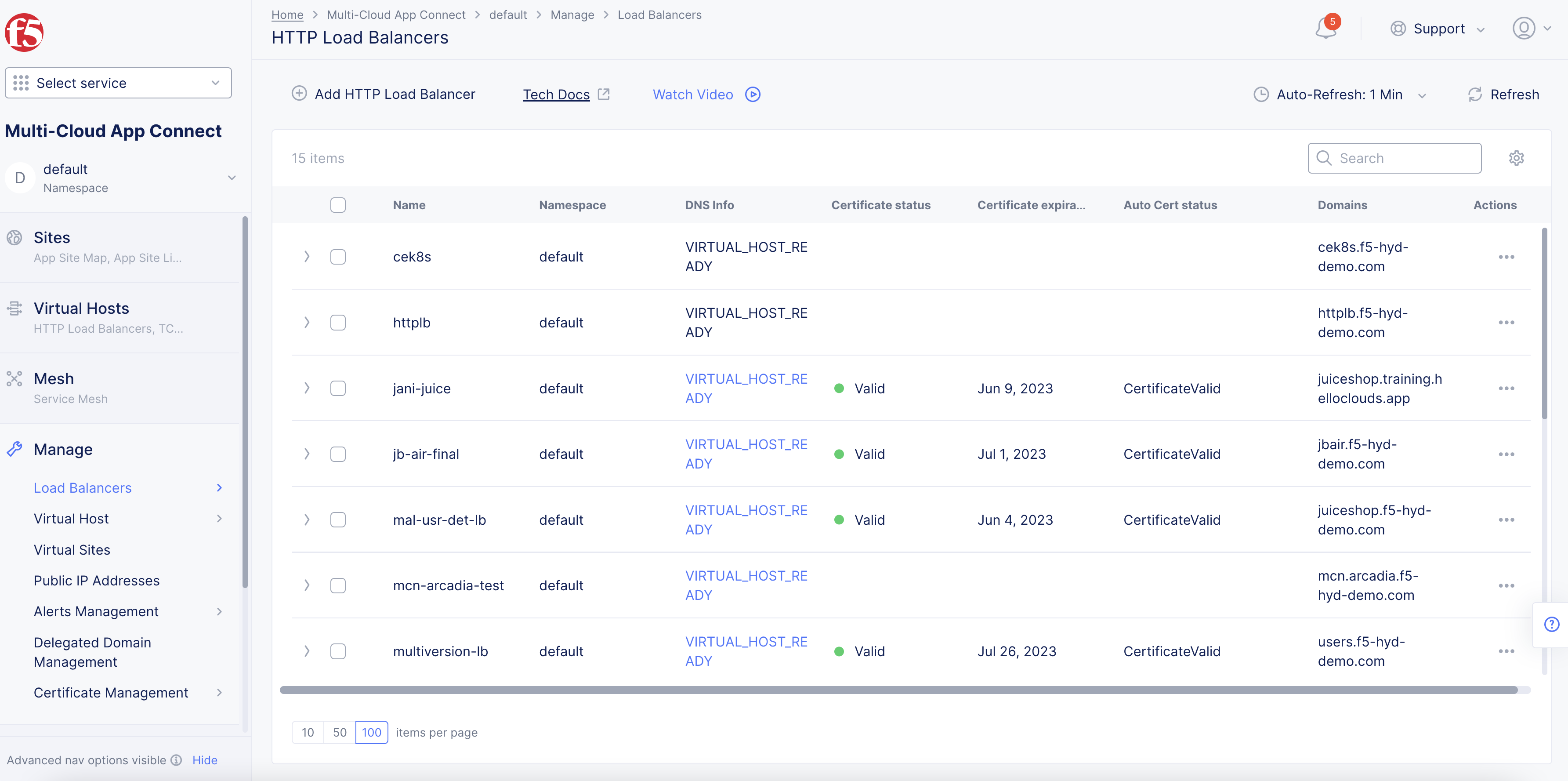
Wait for the DNS Info and Certificate status to display the VIRTUAL_HOST_READY and Certificate statusValid values.
Figure: Load Balancer Created
Verify that the requests to your virtual host domain are processed and load balanced between the configured origin servers.
Note: The Certificate expiration date column displays the expiration date for the certificates. Certificates managed by F5 Distributed Cloud Services are issued for 90 days and auto-renewed after 75 days from the date of issuance.
Domain with other DNS management:
Verify that the Certificate status field shows Domain Challenge Pending.
Click > to view the load balancer information in JSON format.
Verify that ACME challenge record exists under get_spec > auto_cert_info > dns_records field in the JSON. The record name starts with _acme-challenge and the value is the name of the TXT record created by Distributed Cloud Services.
Create a CNAME record with the obtained ACME challenge name and value in your DNS server.
Verify that the Certificate status field value changes to Certificate Valid.
Verify that the Certificate expiration date field value displays the expiration date for the certificates.
Note: Some client browsers can employ a performance optimization known as "connection coalescing." In this optimization, if two host names resolve to the same IP address and are present in the same TLS certificate, the HTTP/2 connection will be reused between them. This can land the HTTP request in the wrong load balancer and results in a 404 error. See HTTP2 RFC for more information.